

Notification channels
AlertKick separates what happened (alerts) from how you hear about it (channels). Channels appear in three places: the immediate notification recipients on a policy, the escalation levels that fire when nobody acknowledges, and each user’s personal notification preferences. The same channels are available everywhere, so nothing forces a “Slack for some things, email for others” split unless you want one.
The channel lineup
Section titled “The channel lineup”| Channel | Best for | Notes |
|---|---|---|
| Low-urgency, paper trail | Any address - recipients don’t need an account | |
| Slack | Team-visible first knock | Workspace channels via the AlertKick app, or a webhook URL |
| Telegram | Personal push that beats email | Via the AlertKick bot |
| Personal push where Telegram isn’t used | ||
| SMS | Waking people up | Works on any phone, no app or data needed |
| Mobile push | The on-call’s phone, with ack in the app | Needs the AlertKick app; honours per-device severity settings |
| Notify Person | ”Reach Alex, however Alex prefers” | Follows the person’s own preferences |
| Custom Webhook | Everything else | JSON POST to any URL - bridges, tickets, lights |
Setting up each personal channel - Telegram through @AlertKickerBot,
WhatsApp and SMS with a verification code and SMS consent - is covered
in Profile and notification settings. Connecting
a Slack workspace, the thread-per-alert behaviour, and the /alertkick
commands are on the Slack page, and the
webhook payload is on Outbound webhooks.
SMS and WhatsApp are available on Professional and Business; SMS is
metered per message (Plans and billing). There
is no voice-call channel.
Where channels plug in
Section titled “Where channels plug in”Policy notifications. The first block of every escalation policy sends to a recipient list the moment an alert triggers, acknowledges, or resolves. Recipient types cover the whole lineup:
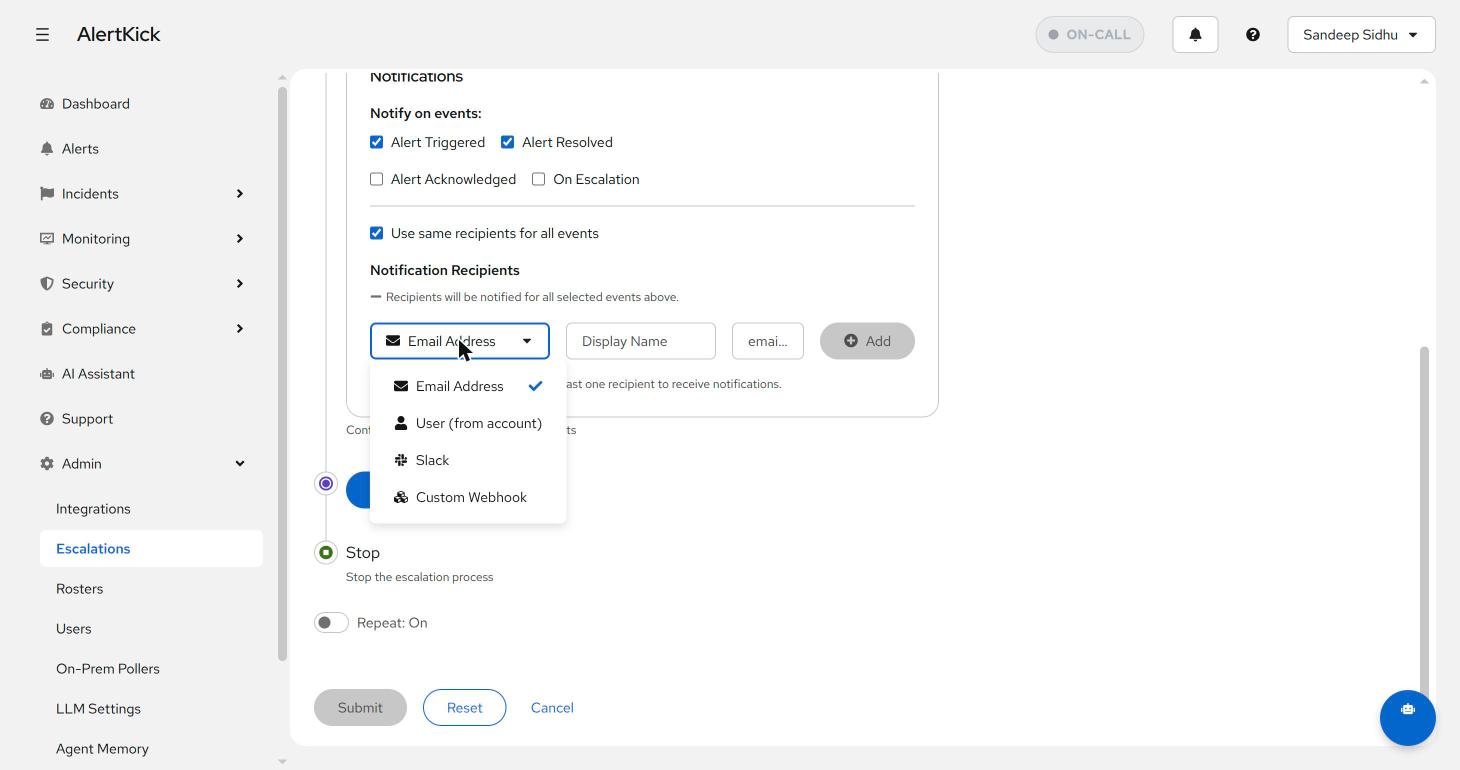
The Slack option lists your workspace’s channels directly (with a note on
whether the bot is a member), so wiring #infra-alerts is a two-click
pick, not a webhook scavenger hunt. See the
Slack integration for connecting the workspace.
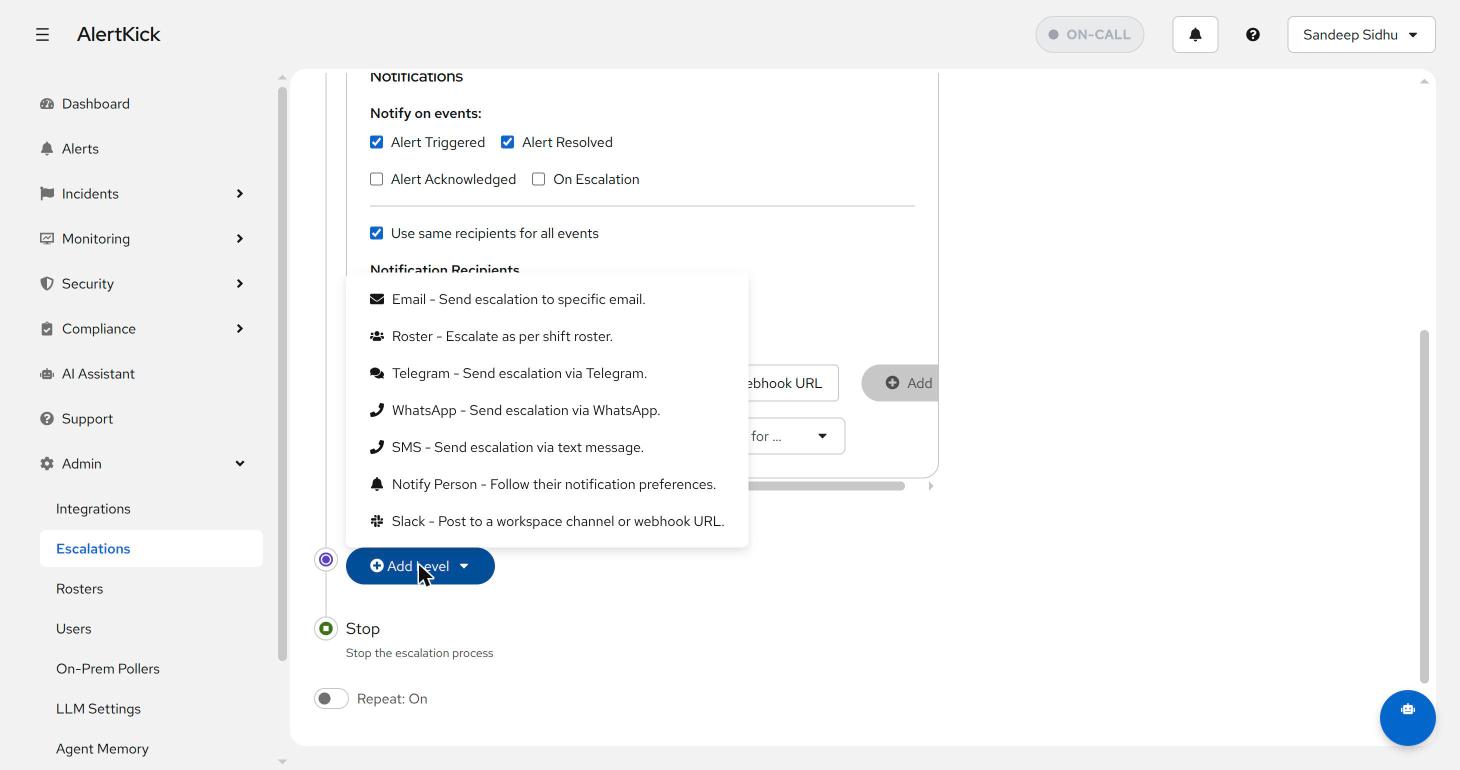
Escalation levels. Every channel is also a level type, which is what makes the classic severity ladder possible - visible channel first, personal pings next, disruptive channels last:
Personal preferences. Each user configures how they want to be reached. The Notify Person channel honours those preferences, so a policy can say “tell the on-call” without hardcoding anyone’s phone number into shared config - people update their own details, policies never change.
Quiet hours
Section titled “Quiet hours”Under Settings, then Notifications, each person can set a quiet-hours window: a start time, an end time, and the timezone they are in. Windows that cross midnight (22:00 to 08:00) work as written.
Inside the window, the interruptive channels aimed at that person as a person are held back:
| Channel | During quiet hours |
|---|---|
| Mobile push | Suppressed |
| Telegram | Suppressed |
| Still delivered | |
| SMS and WhatsApp levels | Still delivered |
Email keeps delivering on purpose - it is the paper trail, and it does not wake anyone. SMS and WhatsApp escalation levels target a phone number written into the policy rather than a personal channel, so they are treated as a deliberate configuration choice and are not suppressed. A chain that must reach somebody regardless of the hour should end in an SMS level.
Ticking Allow critical alerts lets critical-severity alerts through the window untouched, which is the setting most on-call engineers want: quiet for warnings, loud for outages.
Suppressed notifications are recorded in the notification audit trail with a “suppressed by quiet hours” status rather than vanishing, so “why did I not get paged” has an answer.
Quiet hours are a personal setting, not a team one. To silence a planned burst of alerts for everybody, use a maintenance window instead.
Picking channels by urgency
Section titled “Picking channels by urgency”A shape that works for most teams:
- Every alert - Slack channel, so the whole team has ambient awareness and a searchable record.
- Unacknowledged after 5 minutes - Notify Person or a roster, following personal preferences.
- Still unacknowledged - SMS, then repeat. Texts and calls are for escalation, not first contact; a pager that opens with the most disruptive channel trains people to dread and then mute it.
Webhooks sit outside the urgency ladder - use them to mirror alerts into ticketing, status pages, or anything with an HTTP endpoint, in parallel with the human channels.
Next steps
Section titled “Next steps”- Build the ladder in escalation policies.
- Point the person-shaped levels at a roster so the rotation, not the config, decides who gets woken.
- Silence planned work for the whole team: maintenance windows.