

Mobile app
The mobile app is the last hop of an escalation. When a policy level targets a person, a roster, or a team, the same incident that lands in Slack, Telegram, WhatsApp, or email also pages the phone directly - and the phone can acknowledge or resolve it without opening a laptop. Acknowledging anywhere stops the escalation everywhere.
Availability
Section titled “Availability”- Android: available on Google Play as AlertKick (package
com.alertkick.app). - iOS: coming soon. The app has been submitted to App Review; it will appear on the App Store once approved.
The app is sign-in only. Create your account and workspace on the web first (see Account setup), then sign in on the phone.
Sign in
Section titled “Sign in”The login screen offers four ways in:
| Method | What you need |
|---|---|
| Email and password | Your workspace subdomain, email, and password |
| Continue with GitHub | A GitHub account linked to an existing AlertKick user |
| Continue with Google | A Google account linked to an existing AlertKick user |
| Scan QR to sign in | The web dashboard open on another screen |
GitHub and Google sign-in open the provider in an in-app browser and hand a one-time exchange token back to the app. Nothing is stored on the phone except the resulting session, which lives in the platform secure store.
QR sign-in is the quickest route, and the only route for users who signed up through a social provider and have no password. Open Settings -> Sign in on mobile in the web dashboard, tap Scan QR to sign in in the app, and point the camera at the code. The app asks for camera permission the first time; it is used only to read that code.
If a social login fails with “Sign up on the web first”, the provider account is not linked to any AlertKick user yet. Sign up or link it in the web dashboard and try again.
Push notifications
Section titled “Push notifications”On first launch the app asks for notification permission and registers the device with your workspace. Pushes are delivered through Firebase Cloud Messaging on Android and APNs on iOS.
What gets pushed:
- Alert escalations. A push fires when an escalation level targets a user, person, roster, or team - the same levels that send email or chat messages. Levels that only target a channel (a Slack room, a webhook) do not page phones. See Escalation policies.
- On-call changes route to the on-call screen when tapped.
- Test notifications, one per severity, from the notification settings screen so you can confirm delivery before you need it.
On Android, critical, warning, and info alerts arrive on separate notification channels so you can give critical alerts the loudest treatment in system settings. Critical pushes are configured to bypass Do Not Disturb.
Tapping an alert push opens that alert’s detail screen directly.
Notification settings
Section titled “Notification settings”Settings -> Notification settings controls, per device:
- Which severities (critical, warning, info) may push to this phone.
- Quiet hours, with an option to let critical alerts through anyway.
- Your other personal channels (email, Telegram, WhatsApp) - the same preferences as the web dashboard.
Working alerts
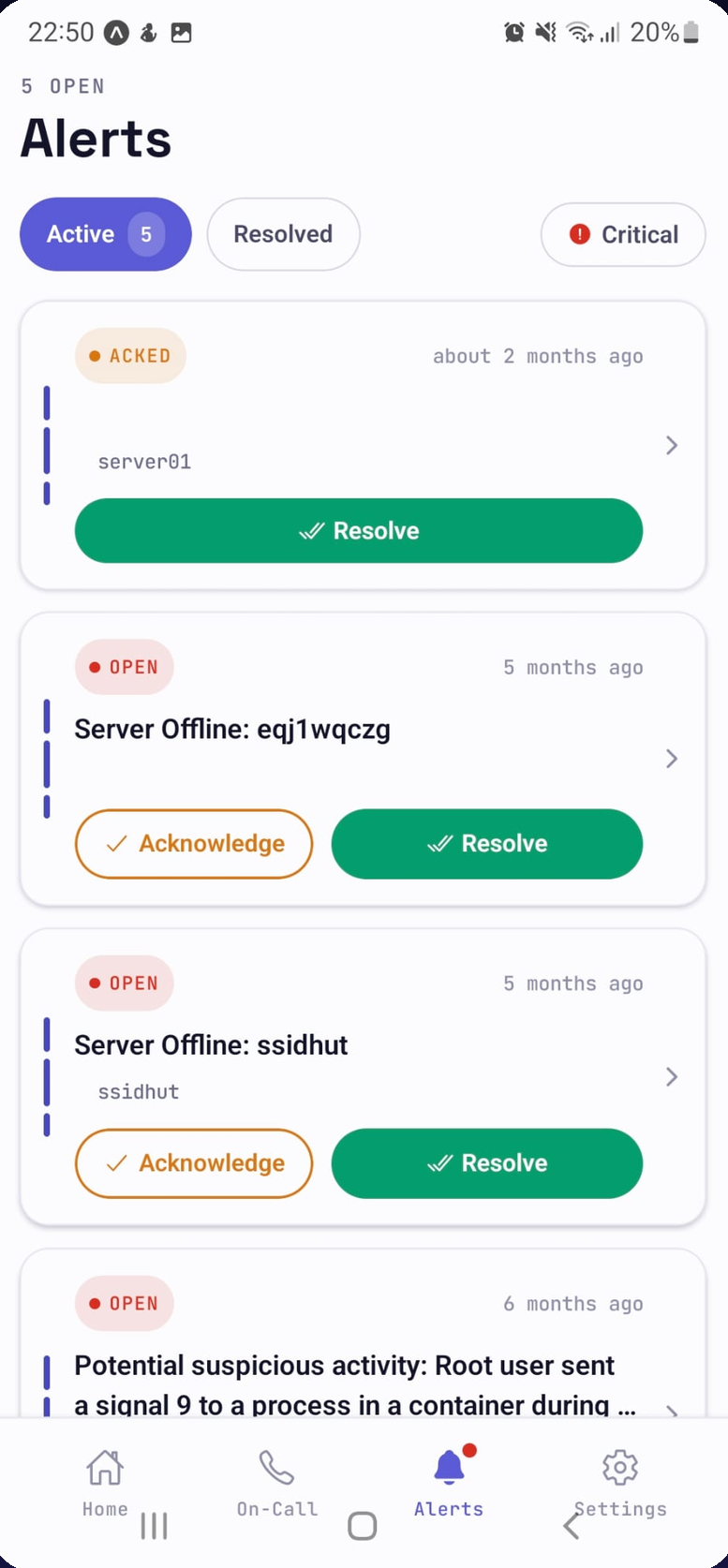
Section titled “Working alerts”The Alerts tab lists open alerts (triggered and acknowledged) and a resolved history; a dot on the tab icon shows when anything is open. Each alert card and the detail screen offer two actions:
- Acknowledge - claims the alert and stops the escalation ladder.
- Resolve - closes the alert.
Both take effect immediately, with no confirmation dialog. The detail screen also shows the alert’s escalation history and an activity timeline (triggered, re-triggered, acknowledged, resolved, recovery, suppression) so you can see what already happened before you act.
Snoozing, reassigning, and manual escalation are not available in the app; use the web dashboard for those. See Alerts for the full alert model.
Home and Infra
Section titled “Home and Infra”Home summarises open alerts by severity, shows who is on call now and who is online, and lists recent alerts. See all under the on-call card opens your own upcoming shifts and the full roster schedule (see Roster management).
The Infra tab switches between:
- Servers - every host with an agent, its reachability and status, CPU and memory charts, and the SSH lockdown card. From the phone you can unlock SSH for 30 minutes, 1 hour, or 4 hours, lock it now, or re-enable auto-lock - the same controls described in SSH lockdown.
- Monitors - every uptime monitor with its response-time chart per check location. You can create HTTP, DNS, and domain-expiry monitors from the phone at 1, 5, 15, or 60 minute intervals, and delete monitors. TCP monitors are created from the web dashboard. See Monitor types.
Settings
Section titled “Settings”- App Lock - require Face ID, fingerprint, or the device passcode to open the app.
- Theme - light, dark, or follow the system. New installs default to dark.
- Delete account - permanently deletes your workspace after you confirm its subdomain. This is the same action as the web dashboard’s account deletion and cannot be undone.
- Log out - clears the session from the device and unregisters it from push.
Troubleshooting
Section titled “Troubleshooting”- No pushes arriving. Confirm notification permission in system settings, that the severity is enabled in Notification settings, and that the escalation level targets a person or roster rather than only a channel. Send a test notification from the app to isolate the device from the policy.
- Google sign-in shows a redirect error. Use GitHub, email, or QR sign-in and report it; the fix is on the workspace side, not the phone.
- Signed out unexpectedly. Sessions refresh automatically; if a refresh fails the app returns to the login screen. Sign in again.