

Roster management
A roster is an ordered list of people plus a rotation rule. AlertKick uses it to answer “who is on-call right now?” any time an escalation policy asks. Get this right and the on-call schedule maintains itself; get it wrong and somebody is going to be paged on their honeymoon.
A roster rotating on-call duty through its members, with handovers computed in the roster's timezone
What a roster is made of
Section titled “What a roster is made of”| Field | What it does |
|---|---|
display_name | Human-readable label (“Prod DB on-call”) |
timezone_name | IANA zone (e.g. Europe/London, America/Denver) |
rotation_type | daily or weekly |
rotation_every | Shift length: N days or N weeks (1-52, default 1) |
rotation_day | For weekly rosters: day the handover happens |
rotation_time_2400 | Time of day the handover happens, in 24h HH:MM |
roster_members | Ordered list of people, with display name and colour |
The rotation always advances in member order, then wraps. If a member is removed, the next handover skips straight to the person who was after them.
Creating a roster
Section titled “Creating a roster”Admin, then Rosters, then Add. Name it, pick the rotation (daily or weekly), the timezone the handover is computed in, and the handover time. Members move from Available to Selected with the arrow buttons, and the numbers on the selected list are the rotation order - drag to reorder:
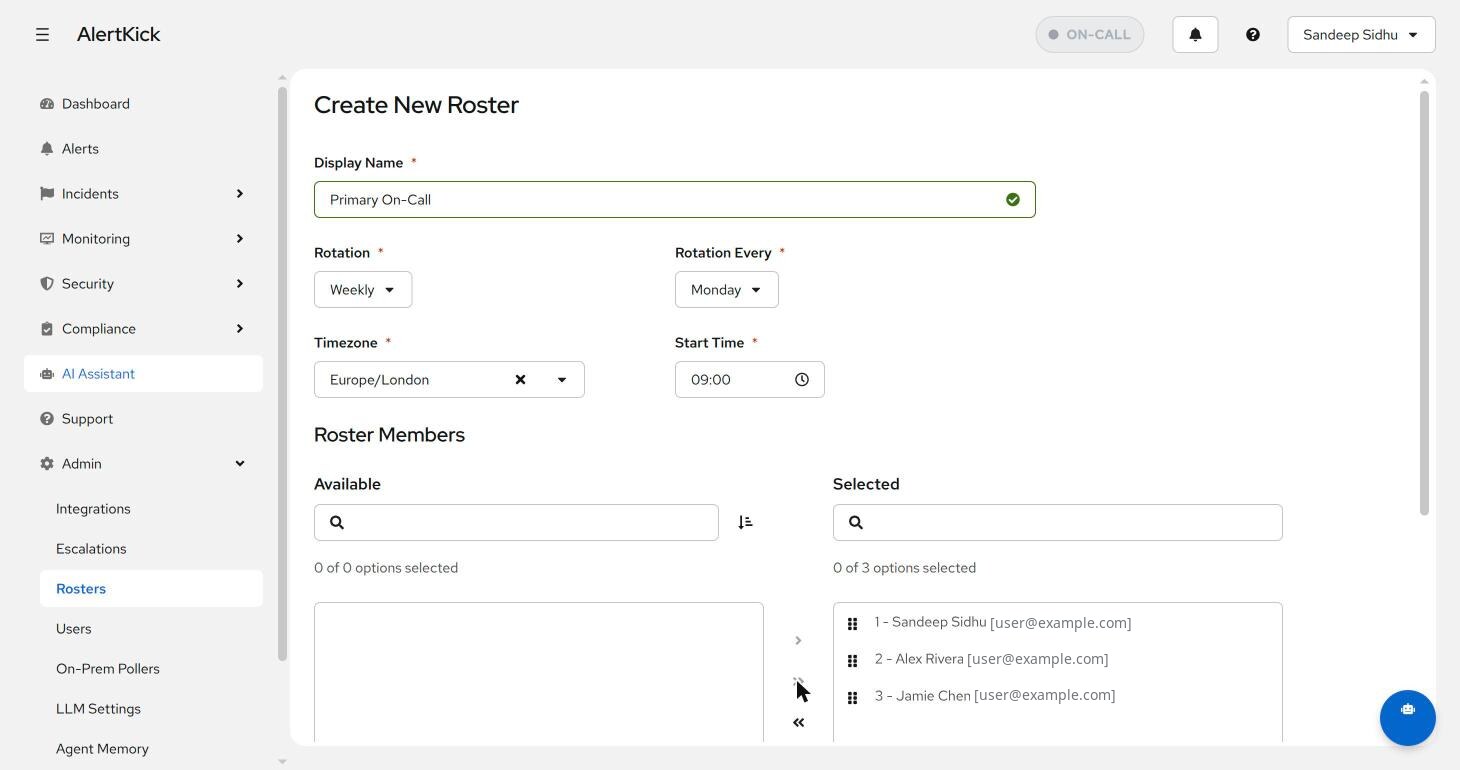
A three-person weekly roster like this one gives everyone two weeks off the pager for every week on.
You can create as many rosters as you need - a primary roster, a backup roster that an escalation policy falls through to, and specialty rosters for individual services.
Seeing who is on-call when
Section titled “Seeing who is on-call when”The roster editor renders a timeline preview - one row per member, coloured blocks for their shifts, months across the top - plus an Upcoming Shifts list with concrete dates and handover times. Flip the toggle to view it in your own timezone rather than the roster’s, which settles the “so who has Christmas?” question in one glance:
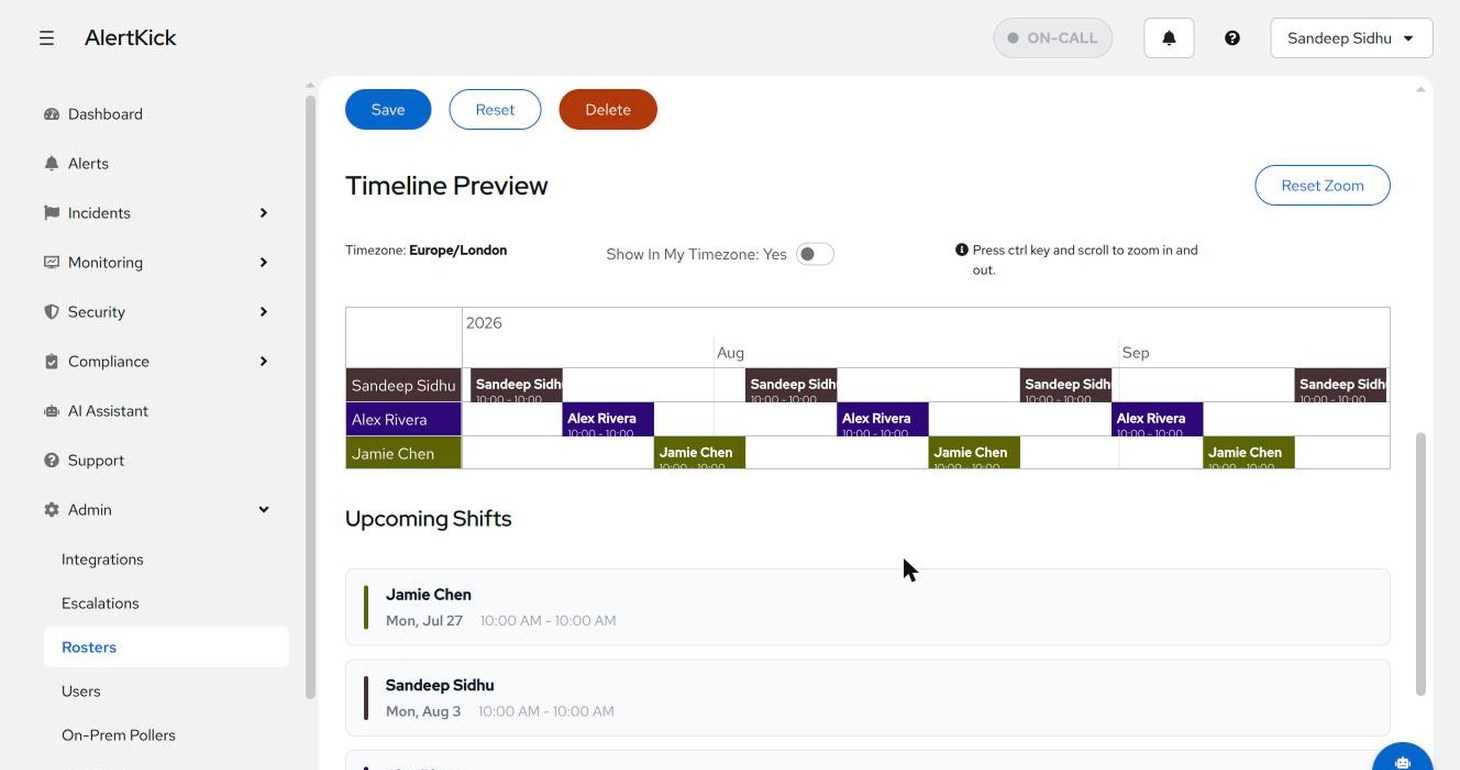
Check this before you save. If the blocks do not alternate the way you expected, the member order (not the rotation settings) is usually the thing to fix.
Rotation patterns
Section titled “Rotation patterns”Weekly, Monday morning handover - the default. Most teams want a clean weekly boundary so on-call duties do not blur into evenings or weekends.
rotation_type: weeklyrotation_day: Mondayrotation_time_2400: 09:00Daily - for short shifts (follow-the-sun across regions, or “primary + secondary” with a daily flip). Pair two daily rosters with different start times for a 12-hour shift pattern.
Shift length: rotating every N days or weeks
Section titled “Shift length: rotating every N days or weeks”The Rotate every field next to the rotation type sets how long one shift lasts: N days on a daily roster, N weeks on a weekly one. It accepts 1 to 52 and defaults to 1, so existing rosters keep the shift length they always had.
rotation_type: weeklyrotation_every: 2rotation_day: Mondayrotation_time_2400: 09:00That is a fortnightly rotation: each member holds the pager for two full weeks, handing over at 09:00 on a Monday. Cycles are anchored on the roster’s reference date rather than on the calendar, so a two-week shift does not drift when a month has five Mondays.
Longer shifts suit teams where most weeks are quiet and context is expensive to rebuild; shorter ones suit noisy services where a full week on the pager is punishing. Check the timeline preview after changing the length - the handover dates move, and whoever is mid-shift keeps the shift they are on.
Previewing before you commit
Section titled “Previewing before you commit”Save changes wrong and the team finds out at 3am. The roster API exposes two preview endpoints that simulate the schedule for the next N weeks without saving:
POST /api/v1/rosters/{uuid}/schedule-preview- preview in the roster’s configured timezonePOST /api/v1/rosters/{uuid}/schedule-preview-tz- preview converted to a caller-supplied timezone
The UI uses these to render the calendar in the editor. The “Save” button is not enabled until the preview has rendered. Use the same endpoints if you are scripting changes.
Timezones and handovers
Section titled “Timezones and handovers”Rosters store an IANA timezone, and every handover is computed against that
zone. If the team is in London but the roster is set to
America/Los_Angeles, the 09:00 handover will fire at 17:00 GMT (or 16:00 in
summer). This is intentional - you usually want the handover to happen at the
start of the engineer’s workday, not the start of the dashboard owner’s.
Follow the Sun rosters
Section titled “Follow the Sun rosters”For teams spread across timezones, pick the Follow the Sun schedule type when creating the roster. One roster, the same rotation, plus working-shift windows per region. The rotation works exactly like a standard roster; in addition you define working shifts, each with:
- Name and timezone: e.g. EMEA in Europe/London
- Working hours: start and end times in the shift’s own timezone (an end time at or before the start means an overnight shift)
- Days: which weekdays the shift works (empty means every day)
- Members: which roster members belong to the shift
- Slack channel: where nudges for this shift are posted (optional; falls back to the roster’s default channel)
Regional working shifts hand alerts to whichever team is awake before paging the rota engineer
When an alert fires and the on-call member is outside their working shift, the currently-awake shift’s Slack channel receives the alert first with an Acknowledge button. If nobody acknowledges within the configured wait (5 minutes by default), the on-call member is paged exactly as the escalation policy defines. Acknowledging anywhere cancels the page.
Roster-level settings:
- Wait for acknowledgement: minutes the awake shift gets before the on-call member is paged (1-60, default 5)
- Page immediately for critical alerts: skip the nudge for critical-severity alerts (off by default)
- Gap-hours nudge: when no shift is in working hours, either page immediately (default) or still nudge the roster’s default channel with a shorter wait (default 2 minutes) and a message saying nobody is on shift
The schedule timeline shows each shift’s working window as a tinted band behind the rotation bars, and a 24-hour coverage strip shows handovers and gaps in your local time. The schedule type cannot be changed after the roster is created. See the Follow the Sun feature page for the full model.
The manual alternative
Section titled “The manual alternative”If you would rather stay on plain rosters, the manual pattern still works: one roster per region with non-overlapping shifts, and escalation policy levels to fall through:
| Region | Hours covered (UTC) | Roster |
|---|---|---|
| APAC | 22:00-06:00 | apac-oncall |
| EMEA | 06:00-14:00 | emea-oncall |
| AMER | 14:00-22:00 | amer-oncall |
The escalation policy points at all three - only the active one will have a member when the policy is evaluated.
Overrides and shift swaps
Section titled “Overrides and shift swaps”Rotation edits take effect at the next handover, which is no use when somebody is ill on a Tuesday. Overrides handle the mid-shift cases without touching the rotation itself.
Open the roster in Admin, then Rosters, and use the buttons above the overrides table:
- Add Override - pick the person taking the shift, a start and an end, and an optional note (“Ada is at a conference”). Between those two instants that person is on-call instead of whoever the rotation names. Outside them the rotation is untouched and resumes exactly where it would have been.
- Swap Shifts - pick two shifts and the two members exchange them. This is stored as a pair of overrides sharing a swap group, so deleting either half deletes both. A half-applied swap would leave somebody covering a shift they never agreed to.
Overrides are an overlay, not an edit: every part of the product that asks “who is on-call right now” reads them, so they all agree. That includes escalation levels targeting the roster, the on-call indicator in the header, the My On-Call page, the timeline, the calendar feed, and the shift-start notice, which also fires when an override starts mid-shift.
On the timeline an override renders as a striped block in the covering member’s row, splitting the rotation block it interrupts, so it is obvious at a glance which shifts are covered and which are the plain rota.
If the override lookup ever fails, paging falls back to the plain rotation rather than blocking - a page going to the wrong person beats no page.
For scripting, the endpoints mirror the buttons:
GET /api/v1/rosters/{uuid}/overrides- listPOST /api/v1/rosters/{uuid}/overrides/create-{user_uuid, start, end, note}POST /api/v1/rosters/{uuid}/overrides/swap-{shift_a_start, shift_b_start, note}POST /api/v1/rosters/{uuid}/overrides/delete-{uuid}
Subscribing to the schedule in a calendar
Section titled “Subscribing to the schedule in a calendar”Calendar feed on the roster editor mints a read-only iCal URL for that roster; the same button on My On-Call mints a personal one covering your own shifts across every roster you are in. Paste either into Google Calendar, Apple Calendar, or Outlook as a subscribed calendar and the rota appears next to everything else in the day.
The feed projects 90 days ahead, is override-aware (it shows who is actually covering, not the raw rotation), and carries a one-hour refresh hint that calendar clients treat as a suggestion rather than a promise. Expect a lag of hours, not seconds, after a swap.
The URL contains a 64-character token and that token is the credential: anyone holding the URL can read shift times and member display names, with no login. Treat it like a password, and do not paste it into a public channel or a shared document.
- Keep rosters small - 3 to 6 people is the sweet spot. With 10+ people the rotation is so infrequent that nobody remembers the runbook when their week comes around.
- Do not reuse rosters across very different services - if “infra” and “billing” share a roster, you will page the wrong specialist half the time.
- Set a colour per member - the calendar view uses these to make at-a- glance scanning quick.
- Keep contact details current - a roster can only page a member through the notification channels configured on their profile.
Troubleshooting
Section titled “Troubleshooting”Roster not rotating
- Check the rotation type, day, and handover time
- Confirm the roster has more than one member in the Selected list
- Use the timeline preview to see when the next handover is due
On-call member not notified
- Check the member’s contact details and notification preferences
- Verify the escalation policy level targets this roster
- Test delivery on the notification channel
The wrong person was paged
- Check the overrides table for a swap or override covering that instant - overrides win over the rotation by design
- Confirm the roster’s timezone: the handover fires in the roster’s zone, not the viewer’s
- On a round-robin escalation level the roster’s rotation is not consulted at all; see escalation policies
Calendar feed shows stale shifts
- Calendar clients refresh on their own schedule, usually every few hours
- Confirm the shift really changed by reloading the timeline in the app
Coverage gaps
- Review the timeline preview and, for Follow the Sun rosters, the 24-hour coverage strip
- Configure the gap-hours behaviour or add a backup roster the escalation policy can fall through to
Next steps
Section titled “Next steps”- Wire the roster into one or more escalation policies.
- Read the consolidated view guide for how the current on-call surfaces on the dashboard.
- Silence planned work so nobody on the rota is paged for it: maintenance windows.
Need help with roster management? Contact support at support [at] alertkick [dot] com.