

Escalation policies
An escalation policy answers a single question: if nobody acknowledges this alert, what happens next?
Every alert that fires in AlertKick is matched to a policy. The policy decides whether to ping a person, a team, or a webhook, and how long to wait before climbing one rung higher. Configure it once, and it runs without anyone thinking about it. Every escalation step is recorded, so each alert carries a complete audit trail of who was notified and when.
An alert climbing an escalation chain until someone acknowledges it
The shape of a policy
Section titled “The shape of a policy”A policy has two parts:
- Default notifications - sent immediately when the alert triggers, is acknowledged, or resolves. This is the “first knock” - usually a Slack message or an email to the on-call.
- Escalation levels - an ordered list of further actions to take if the
alert is not acknowledged within a timeout. Each level has:
escalation_timeout- minutes to wait before this level firesaction_type- what to do (email, mobile push, SMS, WhatsApp, Telegram, Slack, a roster, round-robin across a roster, or a webhook)entity- the target (user UUID, roster UUID, webhook URL, phone number for SMS/WhatsApp)
If repeat is enabled, the chain restarts after the last level instead of
giving up. repeat_max caps how many times the loop runs.
Building a policy in the UI
Section titled “Building a policy in the UI”Head to Admin, then Escalations and click Add. Give the policy a descriptive name. The editor renders the policy as a timeline from Start to Stop, so what you see is the exact order things will fire in.
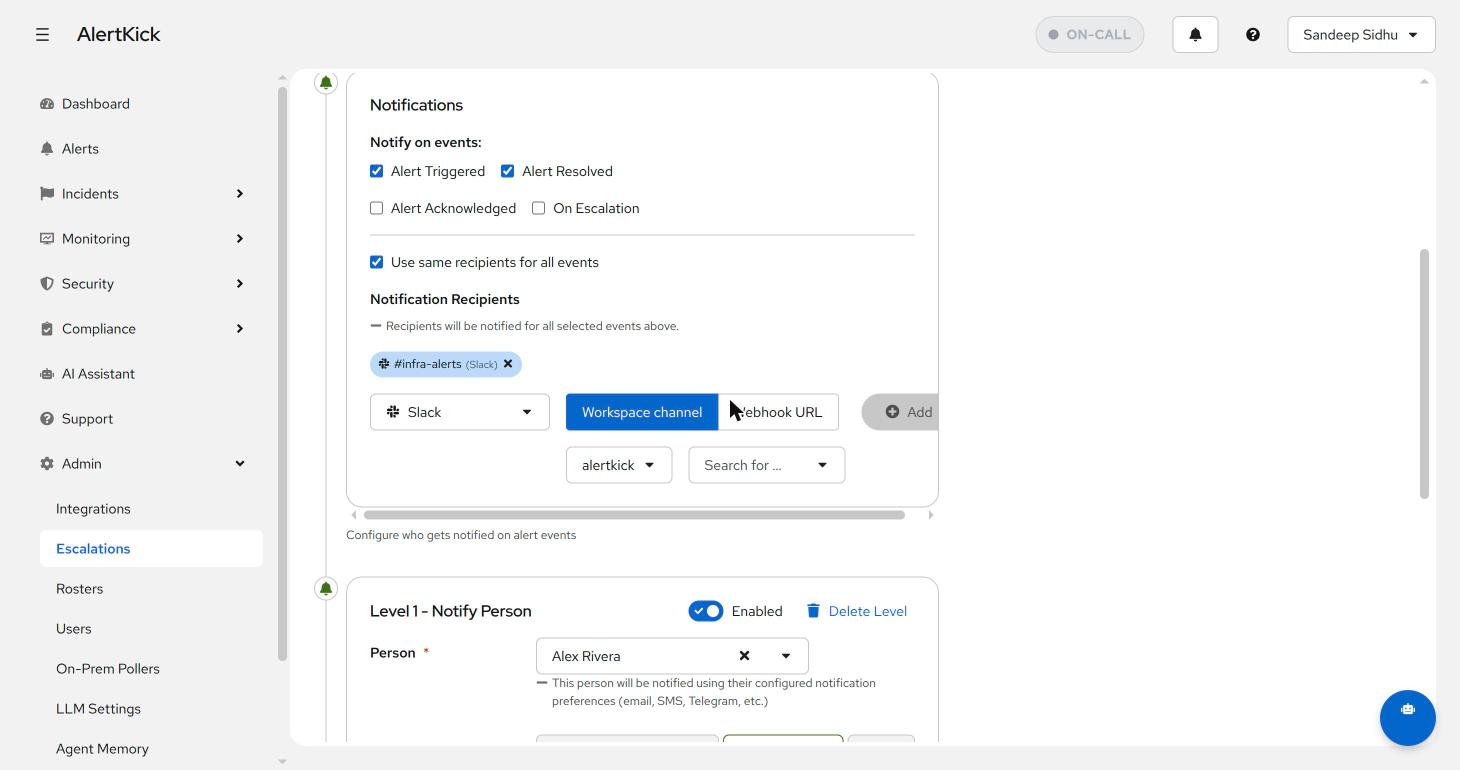
The first block is Notifications - the immediate “first knock”. Tick which alert events send it (triggered, acknowledged, resolved, on escalation), then add recipients:
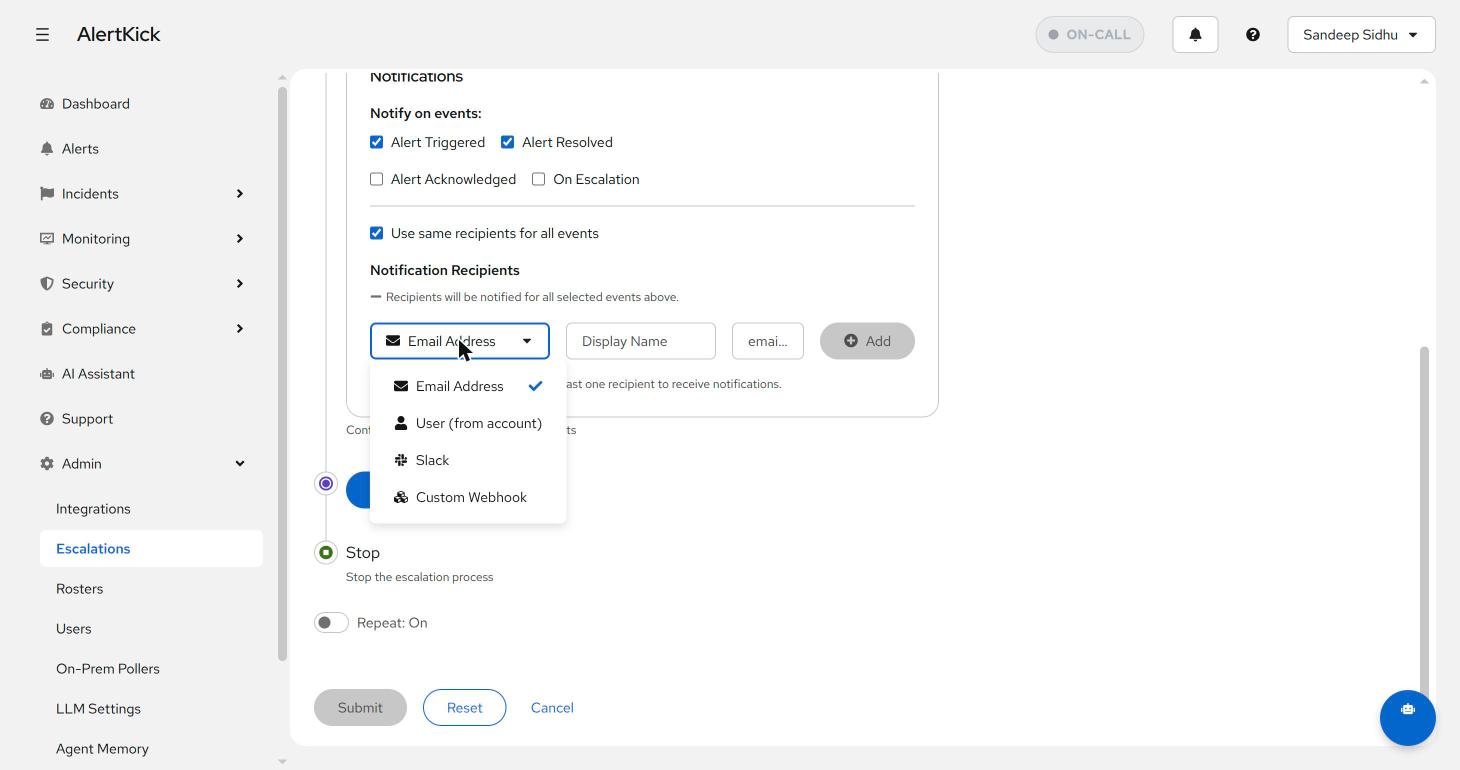
Recipients come in four flavours - a raw email address, a user from your account, a Slack workspace channel (or webhook URL), or a custom webhook for anything else:
Below the notifications block, Add Level builds the chain. Every channel is available at every level, so the classic “Slack first, then a person, then SMS” ladder is just three clicks:
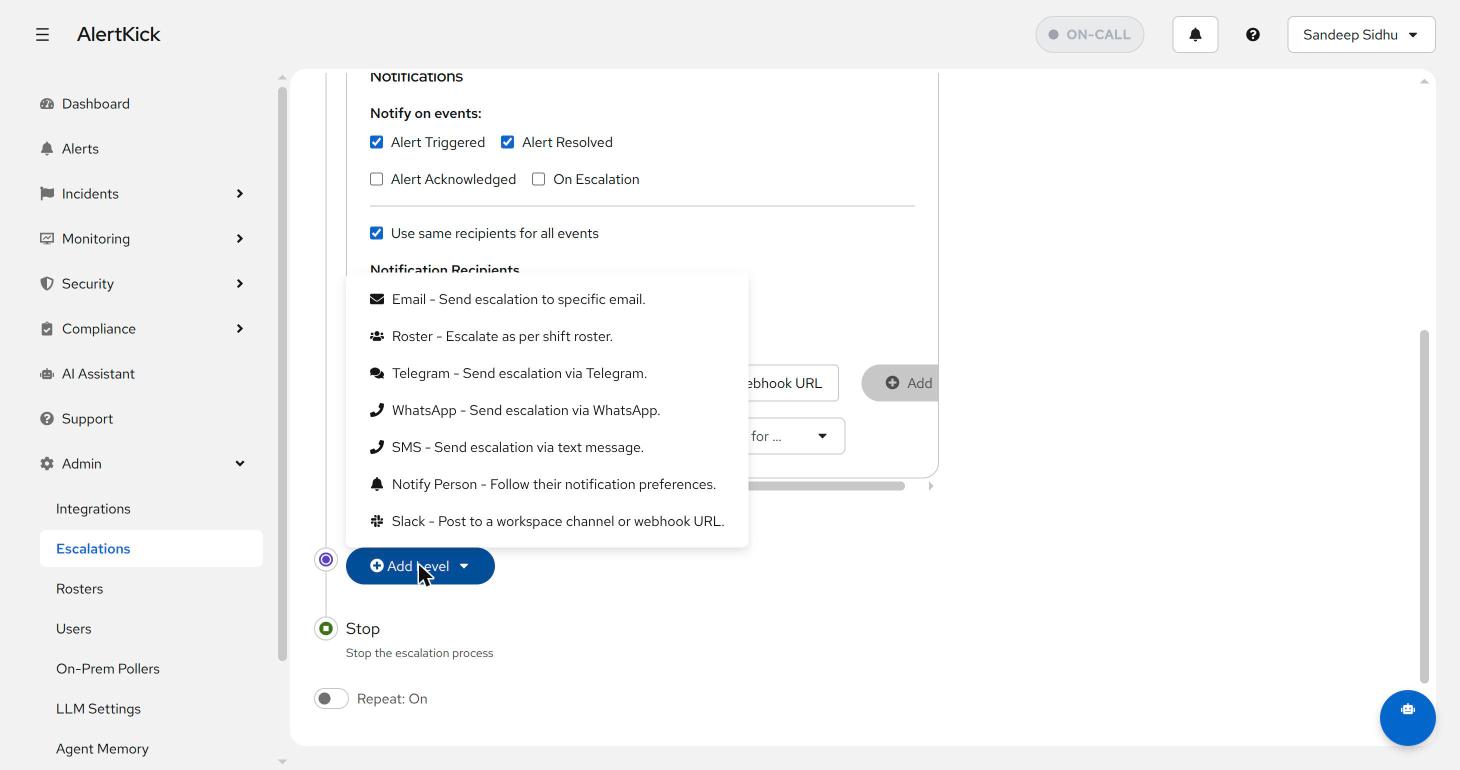
The level types name the channel they use, so a policy reads as the sequence of things that will actually happen:
| Level type | Target | Reaches |
|---|---|---|
| A person on the account, or a raw address | Inbox | |
| Push Notification | A person on the account | Their registered mobile devices |
| SMS | A phone number | Any phone (Professional and Business plans) |
| A phone number | WhatsApp (Professional and Business plans) | |
| Telegram | A person on the account | Their verified Telegram chat |
| Slack | A workspace channel or webhook | The channel |
| Roster | A roster | Whoever is on-call right now |
| Round Robin | A roster | One member, rotating alert by alert |
| Webhook | A URL | Anything that accepts an HTTP POST |
SMS and WhatsApp levels are included on the Professional and Business plans. On Free and during the trial the two options are shown greyed out in the Add Level menu, and the same applies to the SMS and WhatsApp cards on your profile’s notification preferences.
Each level gets its own target and an “escalate to next level after N minutes” timeout, and can be toggled on and off without deleting it - handy for muting the SMS level during planned maintenance:
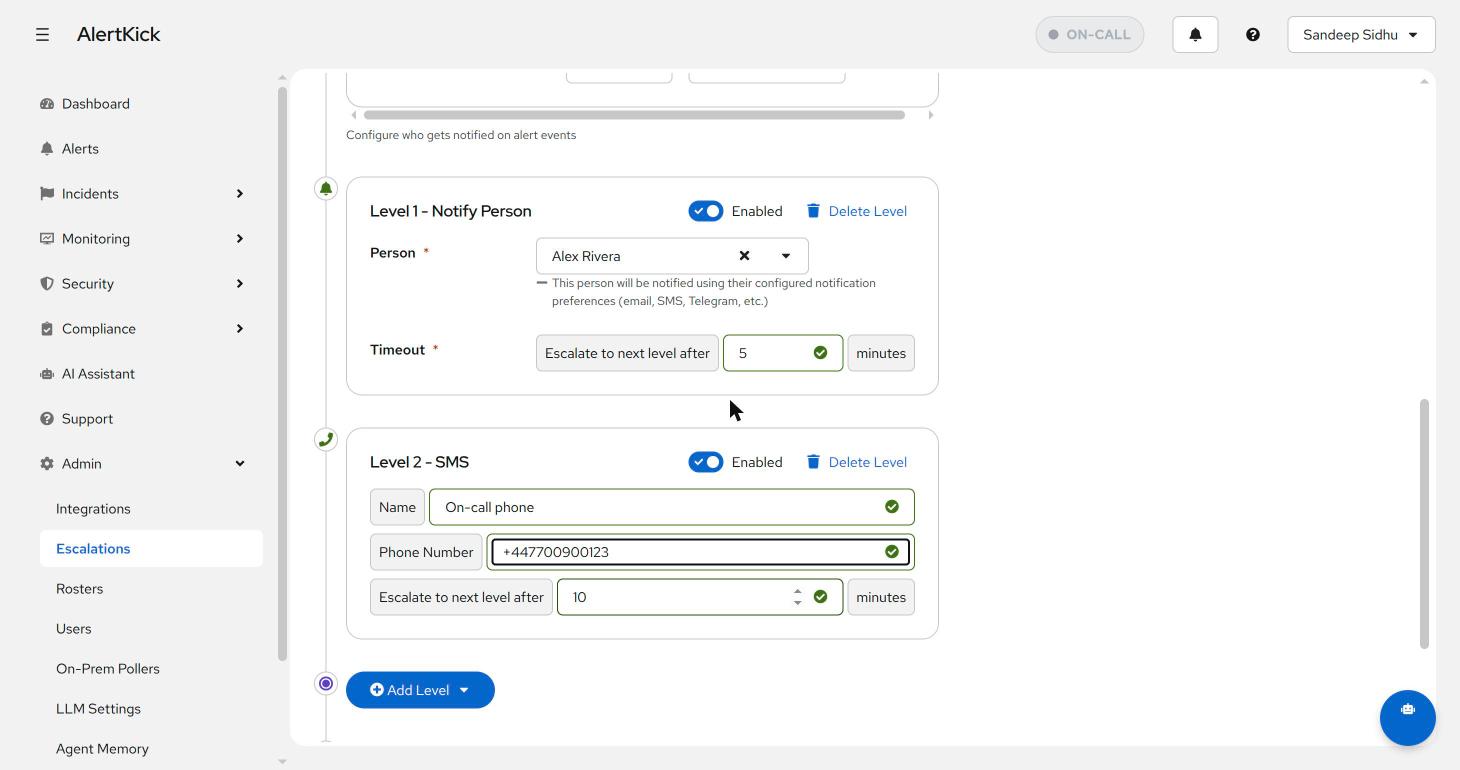
The Notify Person level type is worth a special mention: instead of you choosing the channel, it follows that person’s own notification preferences (email, SMS, Telegram - whatever they have configured on their profile). Use it when you care that Alex finds out, not how.
Worked example
Section titled “Worked example”A typical “production database” policy:
| Level | Wait | Action |
|---|---|---|
| 0 | 0 min | Notify default - #alerts-prod Slack |
| 1 | 5 min | Notify on-call DBA (current roster) |
| 2 | 15 min | SMS the on-call DBA |
| 3 | 30 min | WhatsApp the on-call DBA |
| 4 | 45 min | Escalate to the engineering manager |
If nobody acknowledges by minute 45 and repeat is on, the chain restarts.
In practice it almost never gets past level 2 - but the levels exist so it
cannot slip through.
A simpler starting point for critical server alerts:
| Level | Wait | Action |
|---|---|---|
| 1 | 5 min | Notify the primary engineer |
| 2 | 10 min | Escalate to the team lead |
| 3 | 15 min | Notify the whole team roster |
Picking timeouts
Section titled “Picking timeouts”Some rough starting points:
- Critical, customer-facing - start at 5 minutes between levels. A half-hour gap to the manager.
- Internal infra - 10-15 minutes between levels.
- Best-effort / observability - 30+ minutes, or skip SMS/WhatsApp levels entirely.
Tighter is not always better. If the on-call is being paged for things that genuinely need 15 minutes to investigate, escalating after 5 just wakes the next person and they will be looking at the same screen.
Sending to a roster vs an individual
Section titled “Sending to a roster vs an individual”action_type: notify_user targets one person - useful for tier-2 specialists
(“escalate to the database lead, regardless of who is on-call”) or for a
management level at the end of the chain. action_type: notify_roster
targets the current on-call from a roster, so the policy keeps working as
people rotate in and out. Most levels should use rosters; see
roster management for how rotations work.
Roster levels honour overrides and swaps, so a level pointing at a roster pages whoever is actually covering, not whoever the raw rotation names.
Webhook levels cover external escalation - paging a third-party service or an external contact through any system that accepts an HTTP call.
Round robin: spreading the load across a roster
Section titled “Round robin: spreading the load across a roster”A Round Robin level also points at a roster, but instead of paging the current on-call it pages one member and moves the pointer on for the next alert. Alert one goes to the first member, alert two to the second, and so on around the roster.
That is a different job from an on-call rotation. Use round-robin when a stream of alerts should be shared out rather than landed on one person: triaging a backlog of low-severity tickets, distributing customer-reported issues, or a follow-up level that spreads the second look across the team. Use a plain Roster level for anything where being on-call is the point.
The pick is recorded per alert, so level repeats and the mobile push that accompanies an email all reach the same person, even when several nodes process the same alert. The counter lives per roster, so two policies pointing at the same roster advance the same rotation.
Round-robin does not consult the schedule at all: it will happily page a member who is off-shift. That is the intended behaviour for shared triage, but it makes round-robin the wrong choice for a 3am page.
Testing a policy before you rely on it
Section titled “Testing a policy before you rely on it”The policy editor has a Send test alert button. It creates a real alert bound to that policy and runs it through the actual pipeline: trigger notifications go out, escalation levels are scheduled, and the alert is flagged as a test so it is easy to spot in the alert list.
Watch the alert’s activity feed to see what the policy actually did - which recipients the trigger notification reached, and which member each level resolved to. Acknowledge or resolve the test alert to stop the chain.
Two things to expect when testing: level 1 fires after its own timeout rather than immediately, so a level set to 10 minutes takes 10 minutes to show up; and a policy that any alert references, including a resolved test alert, cannot be deleted afterwards.
Quiet hours and escalation
Section titled “Quiet hours and escalation”Each person can set quiet hours on their profile. During that window AlertKick suppresses the interruptive personal channels aimed at them - mobile push and Telegram - and records the suppression in the notification audit trail rather than dropping it silently. Email still delivers, so the paper trail is intact.
Levels that name a phone number directly (SMS and WhatsApp) are policy configuration rather than a personal channel, and are not suppressed. If a person has ticked Allow critical alerts, critical-severity alerts bypass their quiet hours entirely.
The practical consequence: a chain that must wake somebody at 3am regardless should end in an SMS level, not a push level.
Default notifications: trigger, acknowledge, resolve
Section titled “Default notifications: trigger, acknowledge, resolve”Default notifications send on three events:
- Trigger - alert fires
- Acknowledge - someone hits the Ack button
- Resolve - the underlying check goes back to green
A common setup is to send all three to a shared #alerts channel so the team
sees the full lifecycle without the on-call having to status-update manually.
Linking a policy to an alert
Section titled “Linking a policy to an alert”Policies do not bind to alerts directly - they bind to alert services (groupings like “production-db”, “staging-web”, “compliance-checks”). Each check on a host is assigned to one alert service, and the alert service points at one policy.
This indirection means you can change the on-call schedule for “production” in one place rather than editing every alert. It also gives severity-based routing for free: put critical checks in one alert service with a tight policy and best-effort checks in another with a relaxed one.
Common mistakes
Section titled “Common mistakes”- Too many levels too fast - if level 1 fires after 1 minute, you will wake the second person before the first has even seen the page.
- Pointing every level at the same person - the chain exists so that if the first person cannot respond, the next one does. Personal-only chains defeat the purpose.
- No
repeaton critical policies - if the on-call misses the chain because they were genuinely asleep, an alert that has been firing for 30 minutes should not go quiet. Turn on repeat for anything customer-facing. - Over-escalation - a chain that reaches the manager on every warning causes alert fatigue. Right-size timeouts and keep the noisy services on a gentler policy.
Troubleshooting
Section titled “Troubleshooting”Escalation not firing
- Check that the alert service points at the policy you expect
- Verify the level is toggled on and its target (user, roster, webhook) still exists
- Confirm the roster has a current on-call member
- Review the notification channel settings and delivery
A level fired but nobody heard anything
- Check the target person’s quiet hours; suppressed push and Telegram pages are recorded in the notification audit trail, not silently dropped
- For push levels, confirm the person has a registered device with notifications enabled for that severity
- Check whether a maintenance window was open, which suppresses notifications and escalation for covered alerts
Alerts escalating too far or too fast
- Review the timeouts on each level
- Check whether the alert was acknowledged - acknowledgement stops the chain
- Consider disabling
repeatfor non-critical policies
Next steps
Section titled “Next steps”- Build the rosters the policy will page: roster management
- Connect Slack, email, SMS, and other channels: notification channels
- Silence planned work without disabling the policy: maintenance windows
- See how escalation state surfaces on the dashboard: consolidated view
Need help with escalation policies? Contact support at support [at] alertkick [dot] com.