Linux server security checklist: 20 steps, each with a verify command
A copy-pasteable Linux server security checklist ordered by payoff: 20 steps covering SSH, firewall, updates, accounts, kernel, auditing, containers and drift - each with the command to apply it AND the command to prove it stuck. Works on Ubuntu, Debian and RHEL-family. Includes a free read-only audit script that grades your server.

The AlertKick team
Securing a Linux server comes down to four moves done early and verified often: lock SSH to keys with root login off, put a default-deny firewall in front of every port, patch automatically, and monitor the box so you notice when any of that drifts. Everything else on this page is a refinement of those four.
The problem with most checklists is that they end at the apply step. You paste the command, nothing errors, you move on - and six months later the “hardened” server has password auth enabled because a config management run reverted it, or a container quietly published a port around the firewall. So every step below has two parts: Do and Verify. The verify command is the checklist. If you only have ten minutes, run the verifies.
Two ways to use this page:
- Auditing an existing server? Run our read-only audit script first - it checks a core subset of this list and prints a letter grade with specific fixes, and it makes no changes and phones nothing home. Then come back here for the steps it flagged.
- Building a new server? Work top to bottom. The list is ordered by payoff: the first hour’s steps stop the attacks that actually happen; the rest raise the cost of the attacks that might.
Commands are given for Debian and Ubuntu with RHEL-family (RHEL, Alma, Rocky) variants where they differ. For a full distro-specific walkthrough with reasoning per step, see the Ubuntu 24.04, Debian 13 and RHEL 9 family checklists.
The checklist at a glance
First hour - before the server does real work:
- Named sudo user, stop using root
- SSH: keys only, root login off
- Firewall: default-deny inbound
- Patch now, then patch automatically
- Remove what you don’t need, audit what listens
First day:
- Account hygiene: empty passwords, extra UID 0, lockouts
- Accurate time: logs are evidence only if clocks agree
- Kernel and network sysctls
- Mount /tmp nodev, nosuid, noexec
- SUID and world-writable audit
- auditd plus persistent journald
- Brute-force response (fail2ban)
- Keep SELinux or AppArmor enforcing
First week and ongoing:
- File integrity monitoring
- Ship logs off the box
- Backups you have actually restored
- Container and Docker caveats
- TLS and HTTP security headers
- Alerts on change, not just downtime
- Re-audit on a schedule - hardening decays
First hour
1. Named sudo user, stop using root
Direct root usage means shared credentials and zero attribution. A named user plus sudo gives you one log line per privileged action - which is the difference between reconstructing an incident and guessing.
Do:
adduser deploy                 # Debian/Ubuntu (RHEL: useradd -m deploy && passwd deploy)
usermod -aG sudo deploy        # RHEL-family: usermod -aG wheel deploy
Verify (as the new user, in a second session):
sudo -v && echo "sudo works"
Do not proceed to step 2 until this prints sudo works - the classic self-lockout is disabling root SSH before the replacement account is proven.
2. SSH: keys only, root login off
SSH is the most attacked surface on any internet-facing server. Password authentication is the entire brute-force game; turn it off and the thousands of failed attempts in every public auth.log stop mattering. Paste yours into the auth.log analyzer if you want to see what has been knocking.
Do (from your workstation first: ssh-keygen -t ed25519 then ssh-copy-id deploy@server):
sudo tee /etc/ssh/sshd_config.d/90-hardening.conf > /dev/null <<'EOF'
PermitRootLogin no
PasswordAuthentication no
KbdInteractiveAuthentication no
MaxAuthTries 3
LoginGraceTime 20
AllowUsers deploy
EOF
sudo sshd -t && sudo systemctl reload ssh   # RHEL-family: sshd
Drop-ins under sshd_config.d/ survive package upgrades that touch the main file - prefer them to editing sshd_config directly.
Verify - two checks, because the config file and the running daemon can disagree:
sudo sshd -T | grep -Ei '^(permitrootlogin|passwordauthentication)'
# expect: permitrootlogin no / passwordauthentication no

# from OUTSIDE, keep your current session open and try to break in:
ssh -o PreferredAuthentications=password -o PubkeyAuthentication=no deploy@server
# expect: Permission denied - if it asks for a password, the change did not take
Changing the SSH port is optional noise reduction, not security - a scanner finds the new port in seconds. Keys-only is the control.
3. Firewall: default-deny inbound
The firewall is a statement of intent: every service you did not explicitly allow becomes harmless by default, and an unexpected listening port turns from an emergency into an early warning.
Do (Ubuntu/Debian with ufw; RHEL-family uses firewalld, nftables works everywhere):
sudo ufw default deny incoming
sudo ufw default allow outgoing
sudo ufw allow OpenSSH
sudo ufw allow 443/tcp        # only what this server actually serves
sudo ufw enable
Verify:
sudo ufw status verbose | head -5          # expect: Status: active, deny (incoming)
# firewalld: sudo firewall-cmd --state && sudo firewall-cmd --list-all
# raw nftables: sudo nft list ruleset | grep 'hook input'   # expect a chain with policy drop
Then port-scan yourself from another machine (nmap -Pn your-server) and confirm the open set matches your intent exactly.
4. Patch now, then patch automatically
Most real-world compromises use vulnerabilities that already had a patch available. Automatic security updates are the single highest ratio of protection to effort on this page.
Do:
# Debian/Ubuntu
sudo apt update && sudo apt upgrade -y
sudo apt install -y unattended-upgrades
sudo dpkg-reconfigure -plow unattended-upgrades    # answer Yes

# RHEL-family
sudo dnf upgrade -y
sudo dnf install -y dnf-automatic
sudo systemctl enable --now dnf-automatic.timer
Verify:
grep '"1"' /etc/apt/apt.conf.d/20auto-upgrades     # Debian/Ubuntu: both lines set to "1"
systemctl is-enabled dnf-automatic.timer           # RHEL-family: enabled
ls /var/run/reboot-required 2>/dev/null && echo "REBOOT PENDING"
That last line matters: a patched kernel on disk protects nothing while the vulnerable one is still running. Treat reboot-required as a task with a deadline.
5. Remove what you don’t need, audit what listens
Every installed package is patch surface; every listening socket is attack surface. The audit command here is one you should know cold - it is also the first thing to run when you suspect a compromise.
Do:
ss -tlnp                                   # everything listening on TCP, with owning process
sudo systemctl disable --now <service>     # for anything you cannot justify
sudo apt purge <package>                   # RHEL-family: dnf remove
Verify:
ss -tlnp | awk 'NR>1 {print $4, $6}' | sort -u
You should be able to name the purpose of every line. Anything bound to 0.0.0.0 or [::] that only local processes need should bind to 127.0.0.1 instead. If you find a listener you cannot explain, switch to the is my server hacked checklist before deleting anything.
First day
6. Account hygiene: empty passwords, extra UID 0, lockouts
Three account states are silently fatal: an empty password field, a second UID 0 account (root by another name - also a classic backdoor), and ex-employee accounts that still work.
Do:
sudo passwd -l <user>          # lock any account that should not log in
sudo chage -E 0 <user>         # and expire it
Verify:
sudo awk -F: '($2==""){print "EMPTY PASSWORD:", $1}' /etc/shadow      # expect no output
awk -F: '($3==0 && $1!="root"){print "EXTRA UID0:", $1}' /etc/passwd  # expect no output
lastlog | grep -v 'Never'      # every listed user should be someone you expect
7. Accurate time: logs are evidence only if clocks agree
Correlating an SSH login with a file change across two servers whose clocks disagree by four minutes is guesswork. Compliance frameworks (PCI DSS, SOC 2) require synchronized time for exactly this reason.
Do: modern distros ship systemd-timesyncd or chrony enabled; you mostly need to confirm rather than configure.
Verify:
timedatectl | grep -E 'synchronized|NTP'   # expect: synchronized: yes, NTP service: active
chronyc tracking 2>/dev/null | head -3     # if using chrony: sane offset, not 'Not synchronised'
8. Kernel and network sysctls
A small set of kernel switches removes whole bug classes: ASLR makes memory corruption exploits unreliable, syncookies blunt SYN floods, redirect and source-route settings stop traffic-steering tricks, and ptrace scope stops a compromised unprivileged process from reading its neighbours’ memory.
Do:
sudo tee /etc/sysctl.d/90-hardening.conf > /dev/null <<'EOF'
kernel.randomize_va_space = 2
kernel.yama.ptrace_scope = 1
kernel.kptr_restrict = 1
kernel.dmesg_restrict = 1
net.ipv4.tcp_syncookies = 1
net.ipv4.conf.all.accept_redirects = 0
net.ipv4.conf.all.send_redirects = 0
net.ipv4.conf.all.accept_source_route = 0
net.ipv6.conf.all.accept_redirects = 0
fs.protected_symlinks = 1
fs.protected_hardlinks = 1
EOF
sudo sysctl --system
(Routers and some debugging setups are the exception for redirects and ptrace scope - know why before you deviate.)
Verify:
sysctl kernel.randomize_va_space kernel.yama.ptrace_scope net.ipv4.tcp_syncookies
# expect: 2, 1, 1 - values from the RUNNING kernel, not the file you just wrote
9. Mount /tmp nodev, nosuid, noexec
World-writable directories are where dropped payloads land and run. Mounting /tmp with noexec means the downloaded crypto miner that lands there cannot execute in place - a cheap tripwire that breaks lazy attack chains.
Do:
sudo cp /usr/share/systemd/tmp.mount /etc/systemd/system/ 2>/dev/null || \
  sudo tee /etc/systemd/system/tmp.mount > /dev/null <<'EOF'
[Unit]
Description=Temporary Directory /tmp
[Mount]
What=tmpfs
Where=/tmp
Type=tmpfs
Options=mode=1777,strictatime,nosuid,nodev,noexec,size=50%%
[Install]
WantedBy=local-fs.target
EOF
sudo systemctl daemon-reload && sudo systemctl enable --now tmp.mount
Caveat: a few installers compile helpers in /tmp and will fail under noexec. Set TMPDIR elsewhere for that one command rather than weakening the mount permanently.
Verify:
findmnt -no OPTIONS /tmp # expect nosuid,nodev,noexec in the list
10. SUID and world-writable audit
A SUID binary runs as root no matter who invokes it - each one is a potential privilege escalation, and an unexpected new one is a classic persistence mechanism. World-writable files in /etc mean any account can rewrite system config.
Do and verify in one pass:
sudo find / -xdev -perm -4000 -type f 2>/dev/null | sort | tee ~/suid-baseline.txt
sudo find /etc -maxdepth 3 -perm -0002 -type f 2>/dev/null   # expect no output
sudo chmod u-s /path/to/binary    # for SUID binaries nothing on this box needs
The stock SUID list on a minimal install is about 15 to 25 entries (sudo, passwd, mount and friends). The point of suid-baseline.txt is the diff: rerun the find later and any new entry is either a package update or a persistence attempt - step 14 automates exactly this.
11. auditd plus persistent journald
When something goes wrong, the questions are “who ran what, when, and what changed” - answerable only if the recording was running beforehand. Two cheap wins: auditd for a tamper-resistant syscall record, and journald persistence so logs survive a reboot (several distros default to volatile logs).
Do:
sudo apt install -y auditd && sudo systemctl enable --now auditd   # RHEL: preinstalled
sudo mkdir -p /var/log/journal && sudo systemctl restart systemd-journald
Verify:
sudo auditctl -s | head -2            # expect: enabled 1
journalctl --disk-usage               # expect: archived logs under /var/log/journal
journalctl --list-boots | head -3     # expect: more than just the current boot (after a reboot)
12. Brute-force response (fail2ban)
With password auth off, SSH brute force is already dead - fail2ban is now about log hygiene and covering other password-facing services (mail, web app logins) rather than survival.
Do:
sudo apt install -y fail2ban
sudo tee /etc/fail2ban/jail.local > /dev/null <<'EOF'
[sshd]
enabled = true
maxretry = 5
bantime  = 1h
EOF
sudo systemctl enable --now fail2ban
On systems where sshd logs only to the journal (RHEL 9 family, Debian 12 and later minimal installs), add backend = systemd under [sshd] - a fail2ban jail silently watching an empty log file is a common false sense of security.
Verify:
sudo fail2ban-client status sshd # expect: a jail with a non-zero 'Total failed' on any public host
If Total failed stays at 0 on an internet-facing server, fail2ban is reading the wrong log - see the backend note above.
13. Keep SELinux or AppArmor enforcing
Mandatory access control is what contains a compromised service: the web server that gets popped can only touch what its profile allows. The most common mistake is not misconfiguration - it is disabling the whole system to silence one denial.
Do: nothing on a stock install - Ubuntu and Debian ship AppArmor enforcing, RHEL-family ships SELinux enforcing. The step is refusing to turn it off. Fix individual denials instead:
sudo ausearch -m avc -ts recent       # SELinux: see the actual denial
sudo setsebool -P <boolean> on        # fix with a targeted boolean, not 'setenforce 0'
Verify:
getenforce 2>/dev/null                # RHEL-family: Enforcing
sudo aa-status 2>/dev/null | head -3  # Ubuntu/Debian: profiles in enforce mode
First week and ongoing
14. File integrity monitoring
Steps 1 to 13 define a known-good state. FIM is how you learn that state changed: a modified sshd_config, a new SUID binary, an edited /etc/passwd. Without it, the answer to “did anything change?” is “nobody knows”.
Do: the classic tool is AIDE (sudo apt install aide && sudo aideinit), which snapshots file hashes and diffs on demand. Its limits - daily-scan blind spots and databases an attacker with root can regenerate - and the modern eBPF alternative that watches changes in real time are covered in AIDE vs Tripwire vs eBPF.
Verify:
sudo touch /etc/aide-canary.conf && sudo aide --check --config /etc/aide/aide.conf | head
# expect the canary file to be reported; then remove it
A FIM that has never caught a planted change is untested, not working.
15. Ship logs off the box
An attacker with root edits logs - lastlog, wtmp and auth.log cleaners are standard toolkit items. Logs that left the machine within seconds are the copy you can trust, and the only copy that survives a destroyed server.
Do: forward with rsyslog (*.* @@loghost:514 in a conf.d snippet), or use an agent that ships the journal. Even a budget VPS as a log sink beats local-only.
Verify: log a marker and confirm it arrives somewhere the server cannot delete it:
logger "offbox-test-$(hostname)-$(date +%s)" # then find this string on the log sink
16. Backups you have actually restored
Ransomware turned backups into a security control. Two properties matter more than backup frequency: at least one copy the server cannot reach and delete (pull-based or object-lock storage - a mounted NFS backup dies with the box), and a restore you have personally executed.
Verify (there is no meaningful apply step without this):
# restore last night's backup to a scratch directory or VM, then:
diff -r /restored/etc /etc | head    # expect only expected drift
Schedule a restore drill quarterly. An unrestored backup is a hope, not a backup.
17. Container and Docker caveats
Containers quietly bypass two things this checklist set up. First, published ports: docker run -p 8080:80 inserts iptables rules ahead of ufw, so the port is open to the world even though your firewall never allowed it. Second, the Docker socket: any user in the docker group is root-equivalent (docker run -v /:/host mounts the entire filesystem).
Do:
# bind published ports to localhost unless the world needs them:
docker run -p 127.0.0.1:8080:80 ...
Treat docker group membership exactly like sudo, and give images the same patch policy as packages - a six-month-old image is a six-month-old userland.
Verify:
docker ps --format '{{.Names}}: {{.Ports}}'   # expect 127.0.0.1 binds, not 0.0.0.0
getent group docker                            # expect the same short list as your sudoers
18. TLS and HTTP security headers
If the server faces the web, transport security is part of server security: an expired certificate is an outage, and missing headers (HSTS, CSP, frame-ancestors) leave users attackable even while the box itself is clean.
Verify (both tools are free and run from outside, which is the view that matters):
# certificate chain, expiry and protocol grade:
#   https://alertkick.com/tools/ssl-checker
# header grade with per-header fixes:
#   https://alertkick.com/tools/security-headers
Certificate expiry belongs in monitoring, not in a calendar reminder - renewal automation fails silently, which is precisely the failure class expiry alerts exist for.
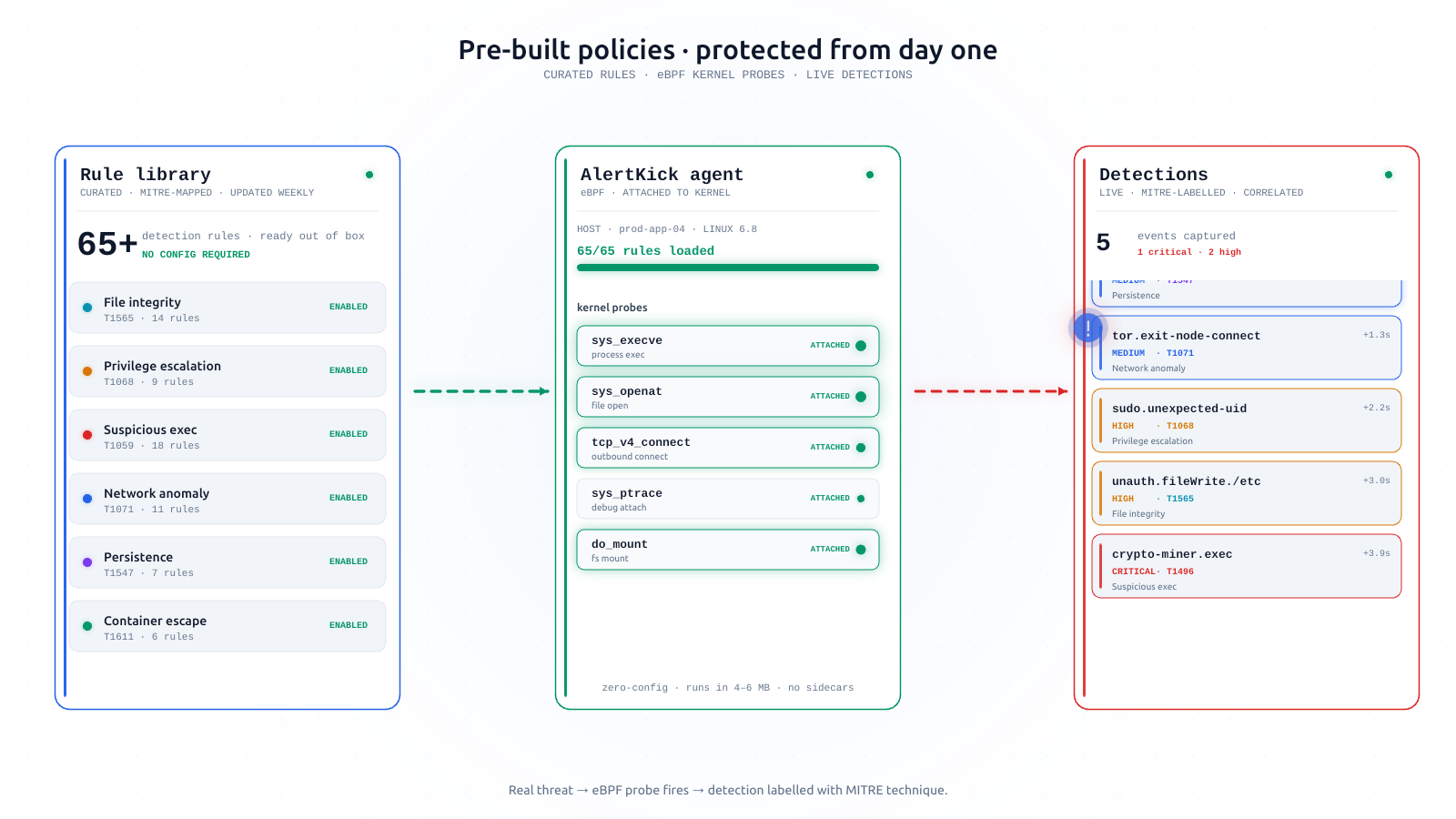
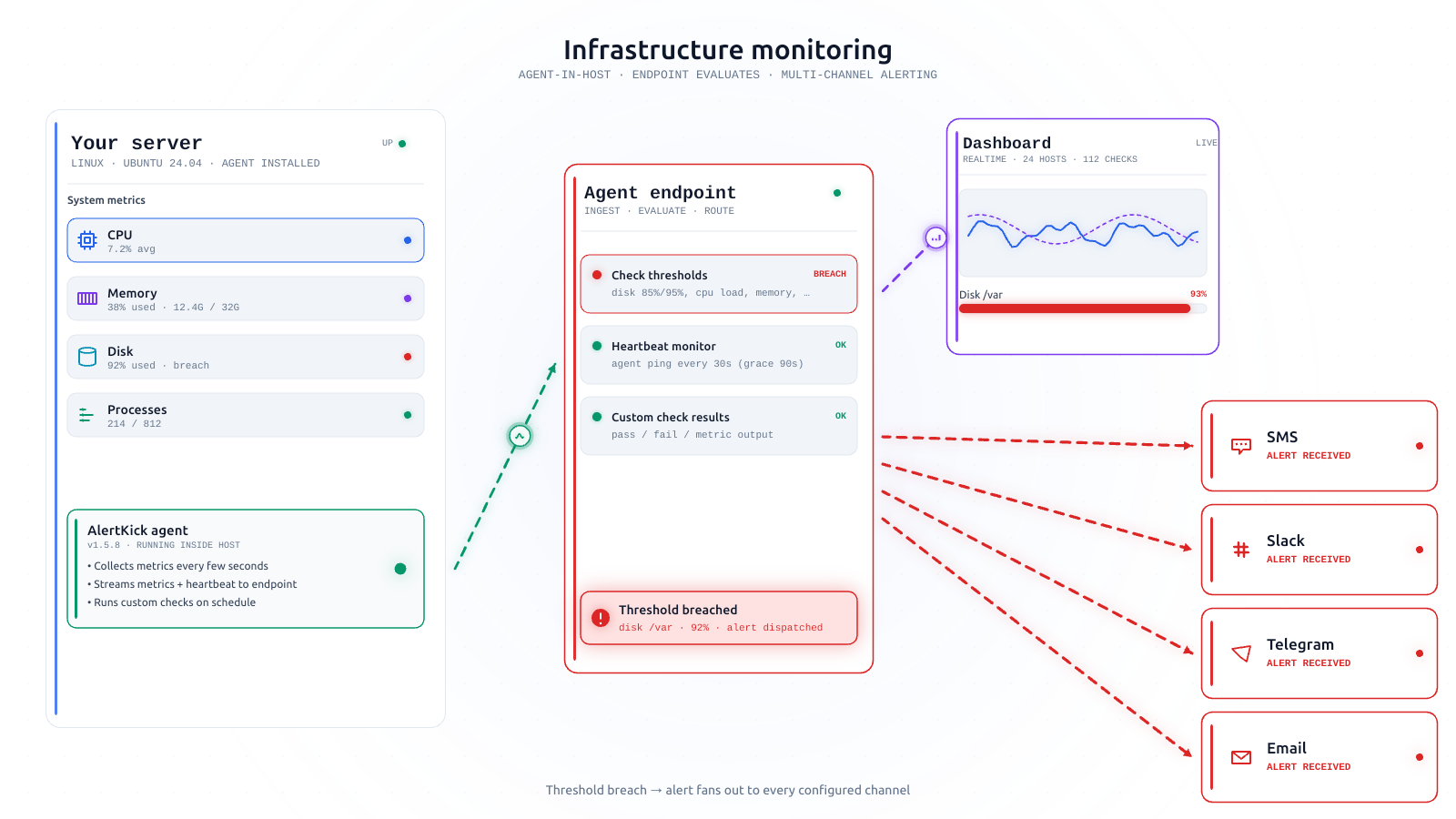
19. Alerts on change, not just downtime
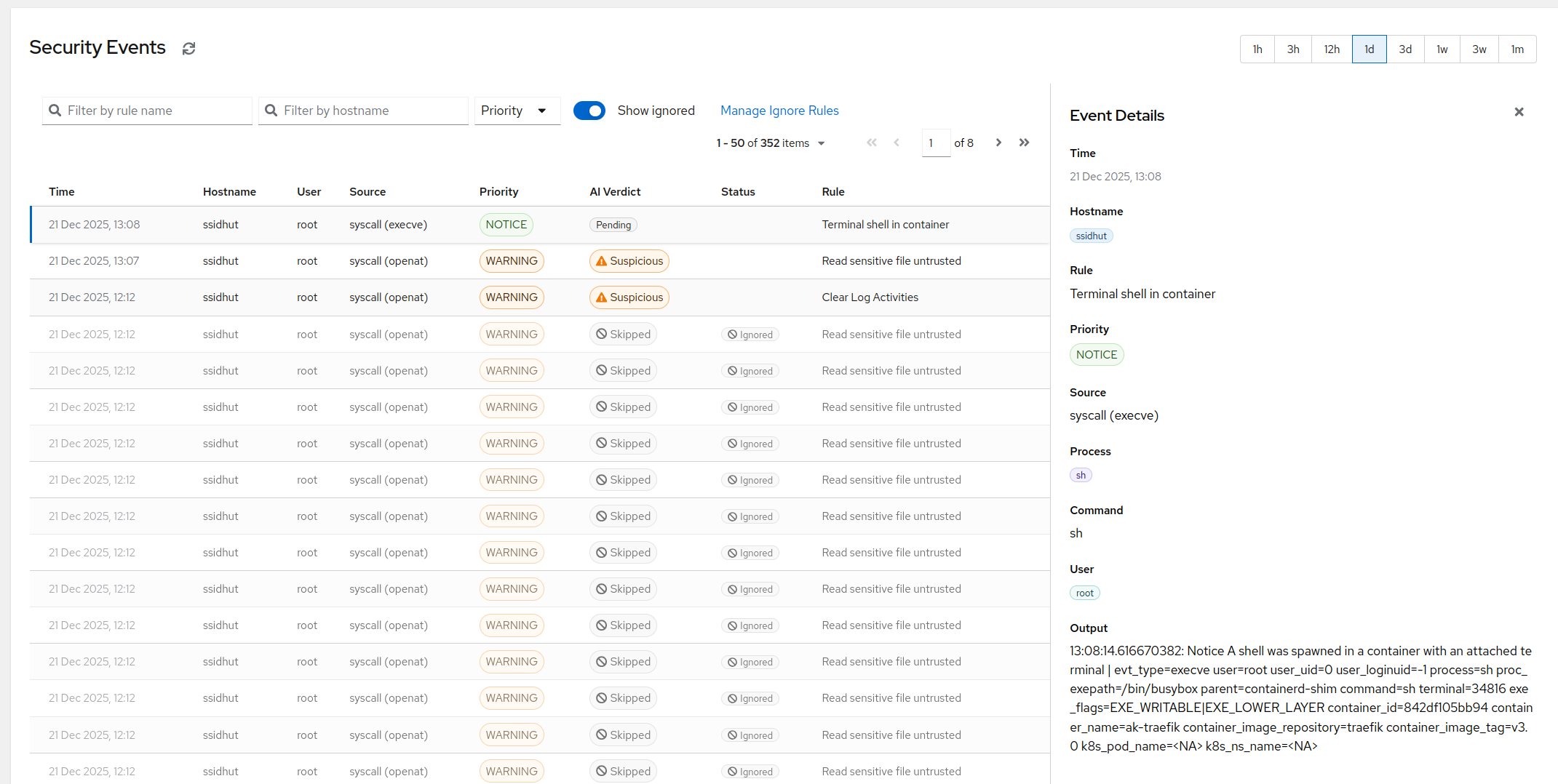
Uptime monitoring tells you the server is up. It says nothing about the server being yours. The events worth a notification are state changes: a new listening port appearing, an SSH login from an address you have never seen, a system binary changing, a rootkit indicator like a process hidden from /proc or an active ld.so.preload, a kernel reboot pending for two weeks. Every incident in step 5, 10 and 14 is invisible to a ping check and obvious to an event feed.
That gap - monitoring that watches liveness while the security state drifts freely - is the reason AlertKick’s agent treats security events as first-class alerts rather than a separate product.
20. Re-audit on a schedule - hardening decays
Configuration entropy is undefeated: a colleague re-enables password auth “temporarily”, a package upgrade resets a config, a container publishes a port. The checklist you completed in week one describes a server that no longer exists by month six - unless something keeps checking.
Do: minimum viable version - rerun the audit script monthly and diff your SUID baseline from step 10:
curl -fsSL https://alertkick.com/tools/hardening-audit.sh -o audit.sh
less audit.sh    # read it - it is short, read-only, and that habit is itself a security control
bash audit.sh
sudo find / -xdev -perm -4000 -type f 2>/dev/null | sort | diff ~/suid-baseline.txt -
Verify: the script prints a grade. The honest metric is not the grade today - it is whether the grade is the same next quarter without anyone remembering to check. That is the difference between a checklist and monitoring, and it is the job continuous agents exist to do.
FAQ
What is the first thing to do to secure a Linux server? Before it does real work: a named sudo user, key-only SSH with root login off, a default-deny firewall, and updates applied now plus automatically thereafter. Steps 1 to 4 above - they close the entry points behind the overwhelming majority of real compromises.
How do I check if my Linux server is secure?
Run the verify commands in this checklist - sudo sshd -T for effective SSH policy, ss -tlnp for the listening surface, firewall state, update timers. Or let the free audit script run the core checks and grade the box; it is read-only and makes no network calls.
Should I change the default SSH port? Optional noise reduction, not security. Scanners find the real port in seconds; key-only auth is the control that ends the game. Change it if quieter logs help you, but never count it as hardening.
Do I still need fail2ban if password authentication is disabled? Not for SSH survival - there is no password left to guess. Keep it for log hygiene and for any other password-facing service on the box, and make sure it reads the journal on modern distros (step 12).
How often should I update a Linux server? Security patches: automatically, daily. Full upgrades with reboots: on a schedule you control, at least monthly. A pending kernel reboot is a vulnerability with a due date.
Should I disable SELinux or AppArmor? No. Fix the specific denial (step 13) instead of removing the containment layer. “It works with SELinux disabled” and “it works without a firewall” are the same sentence.
The steps on this page are a snapshot; a server’s security state is a moving target. AlertKick’s eBPF agent watches the controls above continuously - SSH logins, new listening ports, file integrity, config drift - and pages you when reality diverges from the checklist. Install takes about a minute, and the free tier needs no card. Harden the box with the list above - then put a watcher on the hardening.