ssh monitoring · session tracking · login alerts
Monitor every SSH login on your servers
Who logged into your servers last night? With the AlertKick agent installed, every SSH login on a Linux server becomes a session record: the user, the source IP, when they logged in, and how long they stayed. A login from an address you don't trust pages the engineer on call. One agent, no rules to write.
- root 203.0.113.7 untrusted login 02:14 for 11m 40s procs 197
critical alert · off-hours, unknown source · on-call engineer paged
- deploy 198.51.100.24 trusted login 16:20 for 1m 52s procs 14
- maria 192.0.2.15 trusted login 10:05 for 46m 03s procs 63
Sample data. Your real sessions are on each server's SSH Logins tab.
Comes with the agent on the Professional and Business plans. See pricing.
What each login record shows
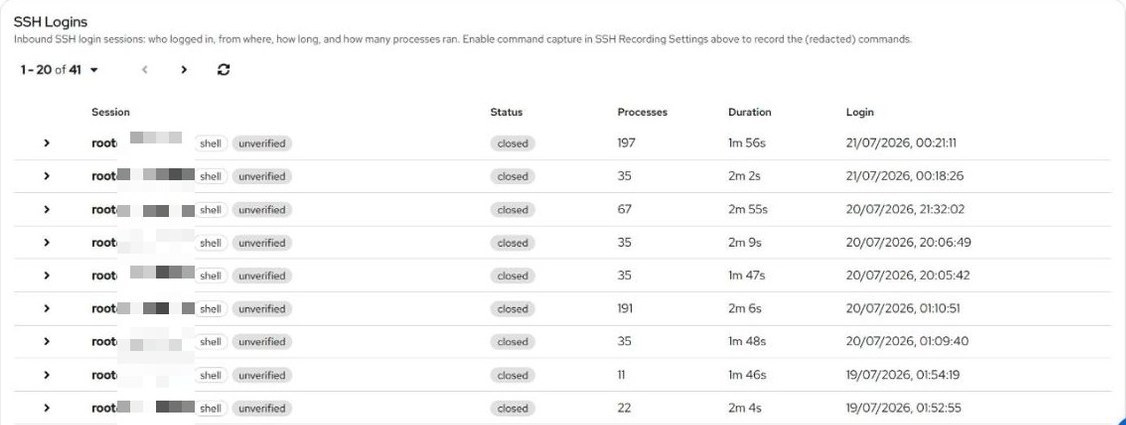
Every server gets an SSH Logins tab with one row per session. Expand a row to see the session from login to logout.
- User - the account that logged in, root included
- Source IP - where the connection came from, with a trust verdict
- Login time - when the session opened
- Duration - how long the session stayed open
- Process count - how many processes ran in the session
A root session that ran 197 processes in two minutes reads differently from one that ran 11. A login notification only tells you someone arrived.
Recorded at the kernel, not by a login script
The agent sees each login with eBPF at the kernel and sends the session off the host as it happens. There is no PAM line to add and no script to copy onto every server. If someone gets root and edits /etc/pam.d/sshd, their login has already left the box. Session tracking is on for every server with security monitoring enabled, so the server you forgot about is covered too.
Trusted and untrusted sources
Tell AlertKick where logins should come from. The SSH allowed source IPs list holds your bastion hosts, office ranges, and home addresses, as single IPs or CIDR ranges. You set it once for the whole account, and every login gets one of three verdicts:
The source IP is on your list.
The source IP is not on your list. A critical alert opens the moment the connection is made.
No list is set yet. The record says it was never checked, instead of calling it safe.
Untrusted logins page the engineer on call
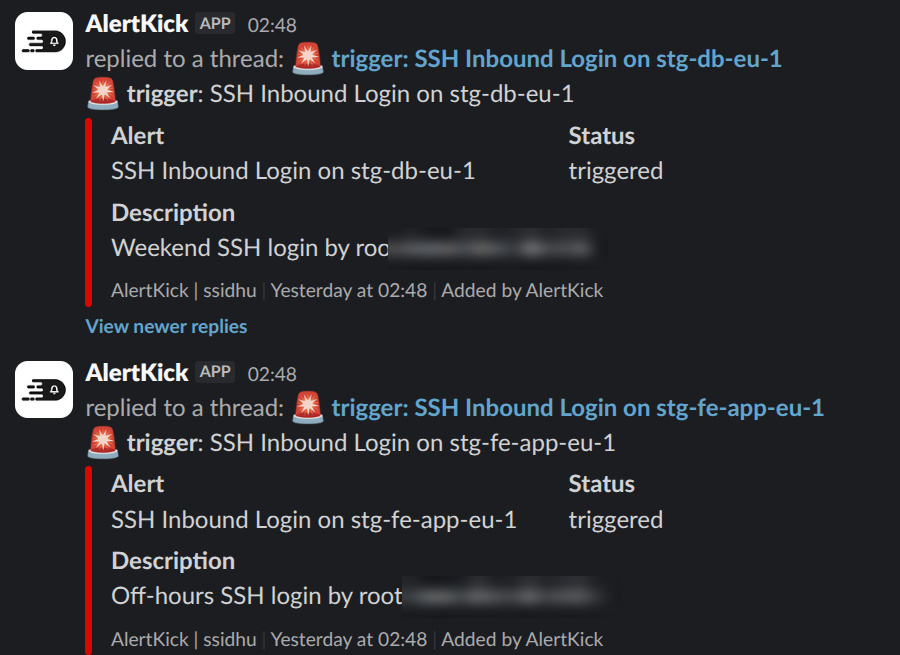
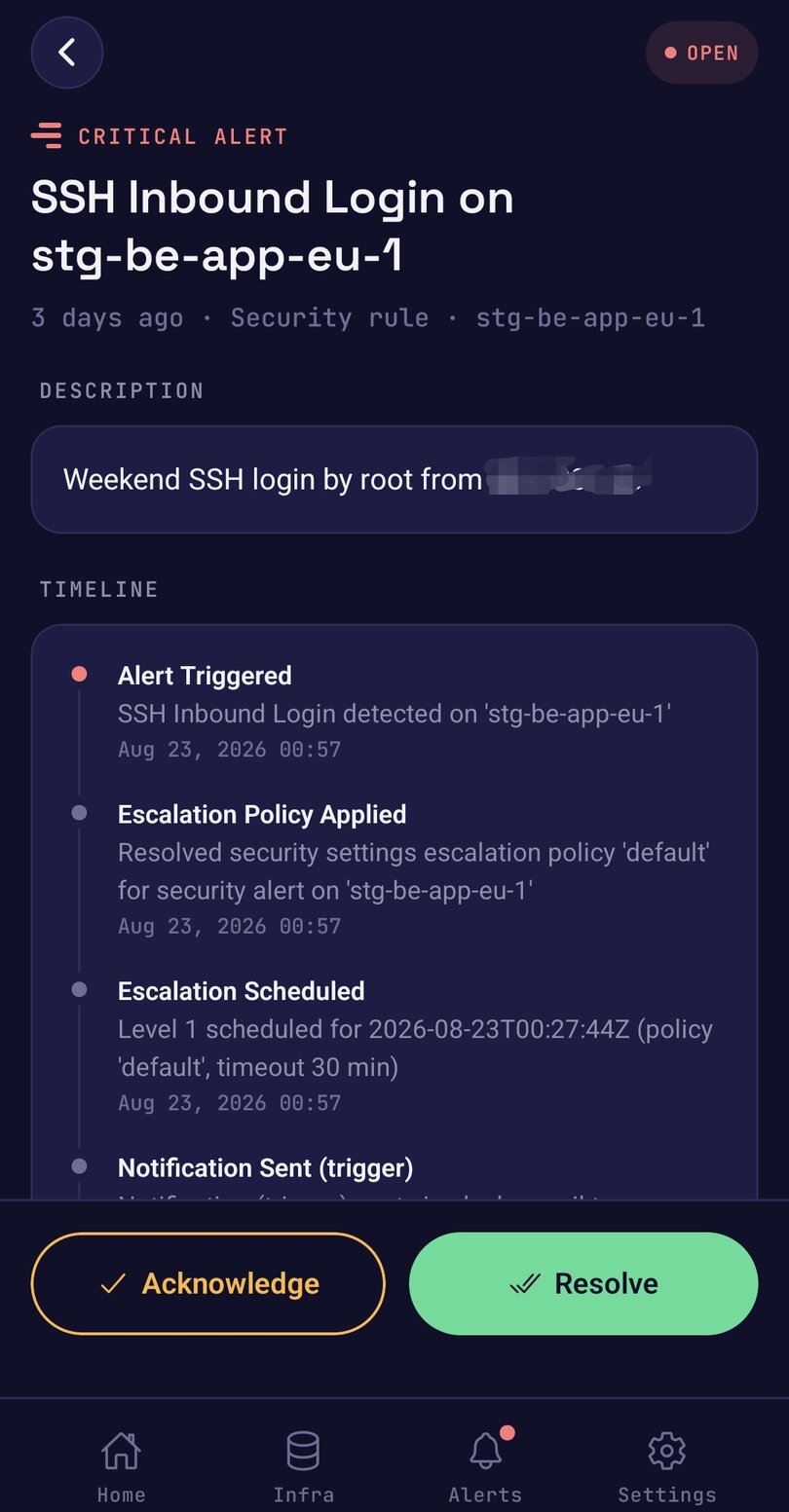
When an SSH rule fires, AlertKick opens one alert per server and rule, and your escalation policy takes it from there. The engineer on call gets it by mobile push, Slack, SMS, WhatsApp, Telegram, or email, whichever the policy uses. Acknowledging from the phone stops the escalation. If nobody acknowledges, the policy pages the next person.
AI triage writes the alert text before it goes out, so the message says why the login looked wrong - outside business hours, unknown source, no deployment going on - and not just a bare IP address.
No rules to write
The SSH rules ship with AlertKick under Security -> Rules. Each one is a toggle:
- SSH Login from Unknown Source IP (critical) - the source is not on your allowed list
- SSH Login During Off-Hours (critical) - a login outside your business hours
- Weekend System Access - access on days that are not workdays
- SSH Login Audit (info) - records every session for the audit trail and never pages anyone
You set business hours once: timezone, start and end hour, and which days are workdays. A login from your CI runner at 14:00 on a Tuesday matches neither critical rule. Root from an unknown address at 02:00 matches both.
See what ran in the session
Turn on command capture for a server and the session timeline also lists the command line of each process the session ran. Arguments can hold passwords and tokens, so the agent redacts them on the host before anything leaves it. Redaction is best-effort, which is why capture is off by default and you choose the servers where it runs.
Lock SSH when nobody should be logging in
Most servers need interactive SSH for a few hours a month. SSH lockdown, on each server's Maintenance tab, denies new SSH logins outside the windows you set.
- Open a host for 15 minutes, 30 minutes, 1 hour, 4 hours, or a custom length. It locks itself again when the timer runs out.
- Recurring maintenance windows, such as Sundays 02:00-06:00.
- A bypass allowlist of IPs or CIDRs for your bastion and CI runner, which can always connect.
- A failsafe: if the agent loses contact with AlertKick for 10 minutes, the lock turns itself off. Console access is never blocked, and sessions already open stay open.
Logins during an open window still get session records and trust verdicts. Lockdown is also what Change Tracking & Control uses to open a host for an approved change and lock it again afterwards.
Set up in three steps
- 01
Add the server
In the dashboard, go to Servers -> Add server.
- 02
Run one command
Paste the install line into a root shell. It detects the distro and architecture and starts the agent under systemd.
- 03
Set hours and trusted IPs
Add your business hours and allowed source IPs. Then SSH in from an address not on the list and watch the alert arrive.
# Copied from Servers -> Add server. Unique to each host.
curl -sSL 'https://app.alertkick.com/app/agent-install/<host-id>/script/<hash>?...' | sh
Debian, Ubuntu, RHEL, Rocky, Alma, Fedora, and others, on amd64 or arm64. The full walkthrough is in the install guide, and the rules are covered in the SSH login monitoring docs.
Related
Change Tracking & Control
Commands and file changes tied to the person who made them, checked against the windows when change was allowed.
eBPF Security Monitoring
The rest of the detections from the same agent: container shells, rootkits, file changes, MITRE ATT&CK mapping, and AI triage.
On-Call Rosters & Escalation
The rosters and escalation policies that decide who gets paged when an SSH rule fires.
Free auth.log analyzer
Paste an auth.log and see failed and successful SSH logins per IP. Parsed in your browser, nothing uploaded.
Guide: SSH login notifications
The DIY PAM hook that posts to Slack or Telegram, and where it falls short.
Common questions
- How is this different from a PAM script that posts to Slack?
- A PAM hook runs on the server it reports on, so anyone with root can delete one line and the alerts stop without a sound. It also sends the same message for every login. AlertKick records the session at the kernel with eBPF, sends it off the host straight away, checks the source IP against your trusted list, and pages only for the logins your rules flag.
- Will logins from my own team page me?
- Not when they come from an address on your allowed list during business hours. Those sessions are recorded and marked trusted. The SSH Login Audit rule records every session at info level and never pages anyone. A login from an address that is not on the list, or one outside business hours, is what opens a critical alert.
- Does it record what people type?
- Not by default. Session tracking records who logged in, from which IP, when, for how long, and how many processes ran. If you turn on command capture for a server, it also records the command line of each process in the session, with secrets redacted on the host before they leave it. It records process command lines, not keystrokes.
- Can SSH lockdown lock me out of my own server?
- It is built not to. If the agent loses contact with AlertKick for 10 minutes, the lock turns itself off. Only network SSH is blocked, so serial, IPMI, and cloud consoles keep working. Sessions that are already open stay open, and addresses on the bypass allowlist can always connect.
- Which plans include SSH login monitoring?
- It comes with the AlertKick agent, which is on the Professional and Business plans. The Free plan covers on-call, monitors, and heartbeats, but not the agent.
Your servers, watched by tonight.
Install one agent. Get security monitoring, infrastructure alerts, and on-call management - all included with every host.