Customizing detection rules
How alert policies and detection rules fit together, and every knob you can turn - enabling policies, overriding per-rule severities, framework toggles, account-wide lists, and where the alerting thresholds live.
Updated
AlertKick’s detection surface has two layers, and knowing which one to
touch is most of the customization skill. Alert policies are the
outcome-shaped layer - “SSH Login During Off-Hours”, “Sensitive File
Modification” - the things you decide to care about. Detection
rules are the kernel-level signals underneath (ac-001 SSH process
execution, fi-009 sensitive file modification, …) that policies
consume. You spend most of your time on policies; the rule layer is
there when you need finer control.
The Rules tab: policies
Security -> Rules lists every policy grouped by category - Access Control, Privilege Escalation, File Integrity, Network Security, and so on - each with an enable toggle, its severity, and tags showing AI evaluation and compliance frameworks. Expanding a policy shows what it is made of:
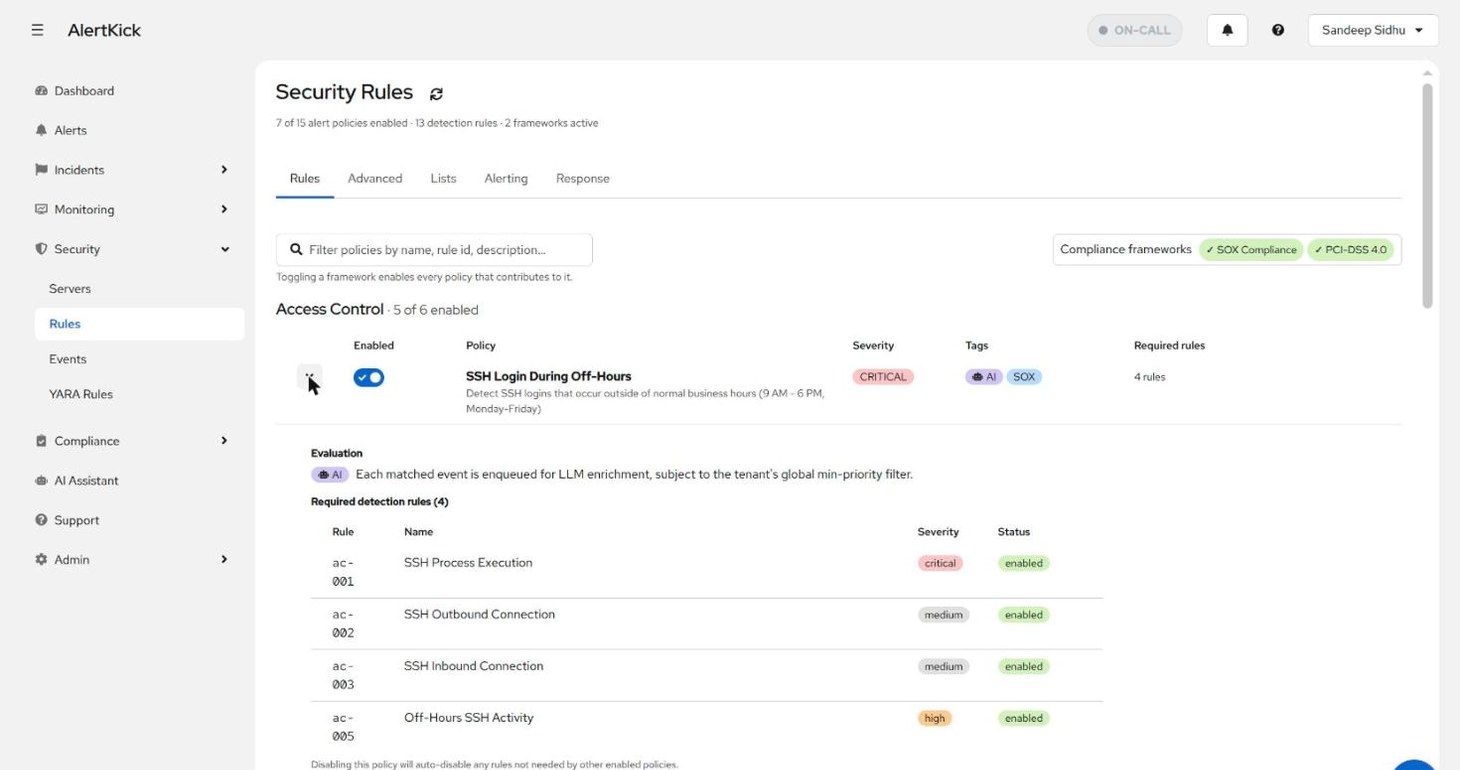
Two things worth reading in the expansion:
- Evaluation - policies tagged AI enqueue each matched event for LLM enrichment (subject to your account’s minimum-priority filter), which is what produces the triage verdicts on alerts.
- Required detection rules - enabling a policy auto-enables the rules it needs; disabling it auto-disables any rules no other enabled policy still needs. You never have to reconcile the two layers by hand.
The Compliance frameworks chips at the top right are the biggest single switch on the page: toggling SOX or PCI-DSS 4.0 enables every policy that contributes to that framework (see the compliance guide).
The Advanced tab: individual rules
When a policy’s defaults do not fit - a rule too chatty at its default severity, or a single signal you want without its whole policy - the Advanced tab exposes all detection rules directly:
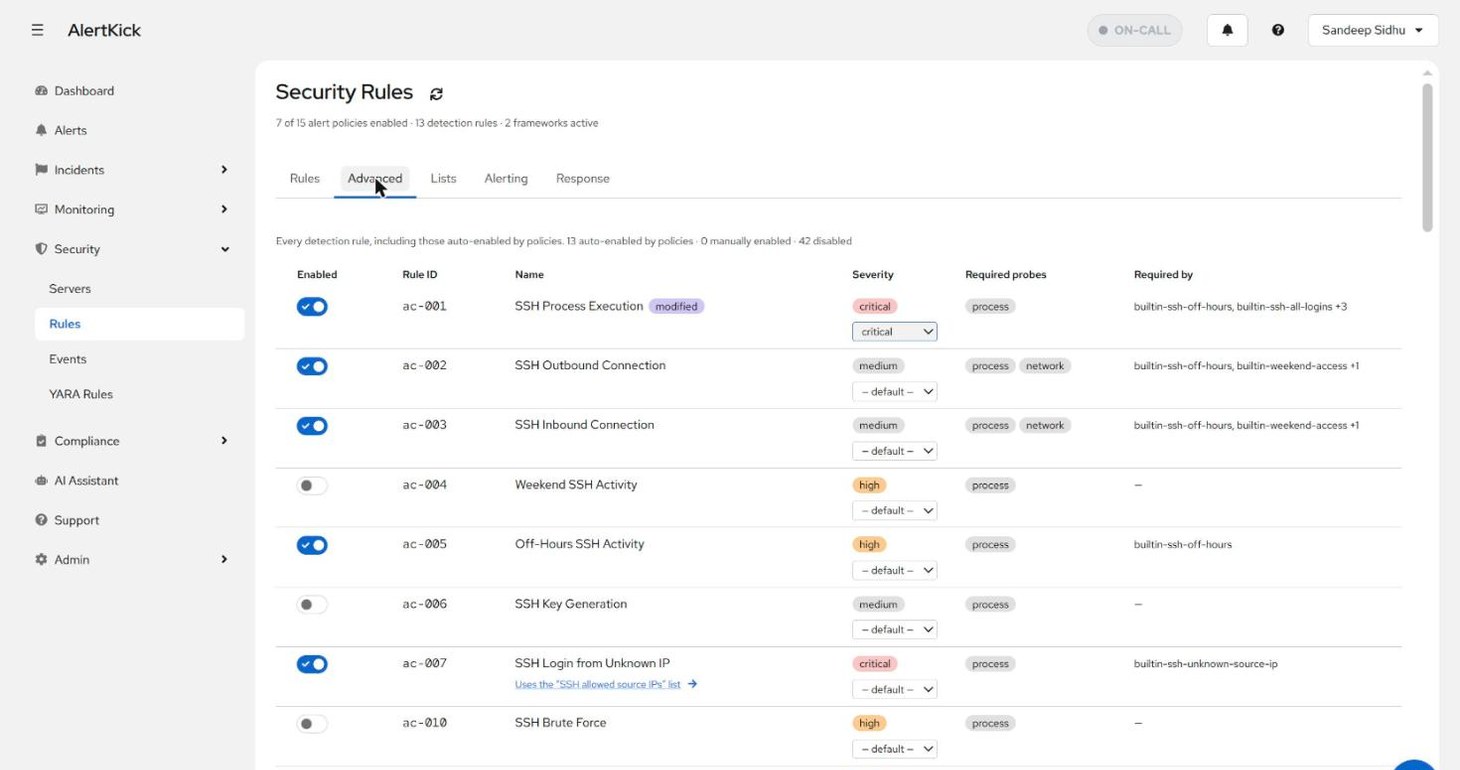
Per rule you can:
- Enable it manually, independent of any policy. The header counts keep the bookkeeping honest: how many rules are auto-enabled by policies, manually enabled, and disabled.
- Override its severity. The dropdown defaults to the rule’s shipped severity; overriding marks the rule modified so you can see your drift from the defaults at a glance. Severity matters twice: it is carried onto alerts, and the Alerting tab’s minimum-severity threshold decides which events open alerts at all.
- See its required probes (process, network, file, privilege…) - which agent instrumentation must be active for this rule to fire.
- See what requires it - the policies that depend on the rule, so you know the blast radius before disabling one.
Rules that reference an account-wide list link to it - ac-007 “SSH
Login from Unknown IP” points at the SSH allowed source IPs list on
the Lists tab. Lists are edited once and affect every rule that
uses them, across all hosts.
Where the thresholds live
Rule customization decides what fires; the Alerting tab decides
what pages you: the minimum severity that opens an alert, the
escalation policy security alerts use, and the business-hours calendar
that time-based rules evaluate against (timezone, hours, workdays -
custom rules can reference hour_of_day and is_weekend in the same
timezone). Tuning noise is usually a two-step: set rule severities
honestly on the Advanced tab, then set the alert threshold where your
team’s pain point is.
A sane tuning workflow
- Start from policies, not rules. Enable the policies (or a compliance framework) that match what you run; let the rule layer follow.
- Watch the Events page for a few days. See what actually fires in security events before touching severities.
- Demote, don’t disable. A noisy-but-real signal usually deserves a lower severity (below your alert threshold) rather than a disabled rule - it stays in the event stream and in compliance evidence, it just stops paging.
- Check the MITRE view. The ATT&CK overview shows which techniques your current rule set covers - useful for judging what a disable actually costs.
Try it on your own infrastructure
Everything in this guide works on the free plan or the 30-day money-back paid tiers - uptime monitors, heartbeats, escalations and on-call, plus the agent for metrics and eBPF security. Setup takes minutes, not sprints.