Roster management
Set up on-call rotations so the right person is on the hook at the right time - across timezones, without spreadsheets.
Updated
A roster is an ordered list of people plus a rotation rule. AlertKick uses it to answer “who is on-call right now?” any time an escalation policy asks. Get this right and your on-call schedule maintains itself; get it wrong and somebody is going to be paged on their honeymoon.
What a roster is made of
| Field | What it does |
|---|---|
display_name | Human-readable label (“Prod DB on-call”) |
timezone_name | IANA zone (e.g. Europe/London, America/Denver) |
rotation_type | daily, weekly, or custom |
rotation_day | For weekly rosters: day the handover happens |
rotation_time_2400 | Time of day the handover happens, in 24h HH:MM |
roster_members | Ordered list of people, with display name and colour |
The rotation always advances in member order, then wraps. If a member is removed, the next handover skips straight to the person who was after them.
Creating a roster
Admin, then Rosters, then Add. Name it, pick the rotation (daily or weekly), the timezone the handover is computed in, and the handover time. Members move from Available to Selected with the arrow buttons, and the numbers on the selected list are the rotation order - drag to reorder:
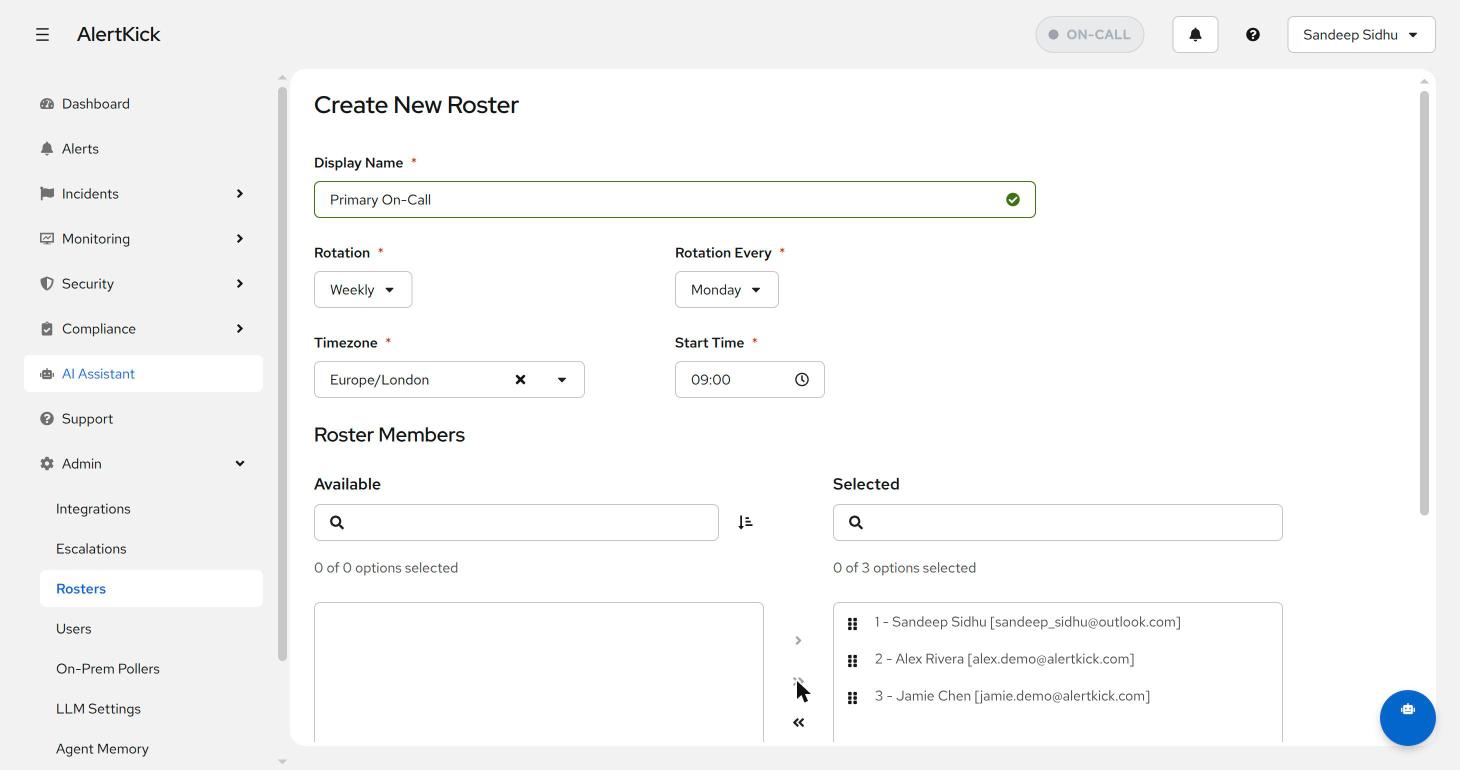
A three-person weekly roster like this one gives everyone two weeks off the pager for every week on - the sweet spot most small teams land on.
Seeing who is on-call when
The roster editor renders a timeline preview - one row per member, coloured blocks for their shifts, months across the top - plus an Upcoming Shifts list with concrete dates and handover times. You can flip the toggle to view it in your own timezone rather than the roster’s, which settles the “so who has Christmas?” question in one glance:
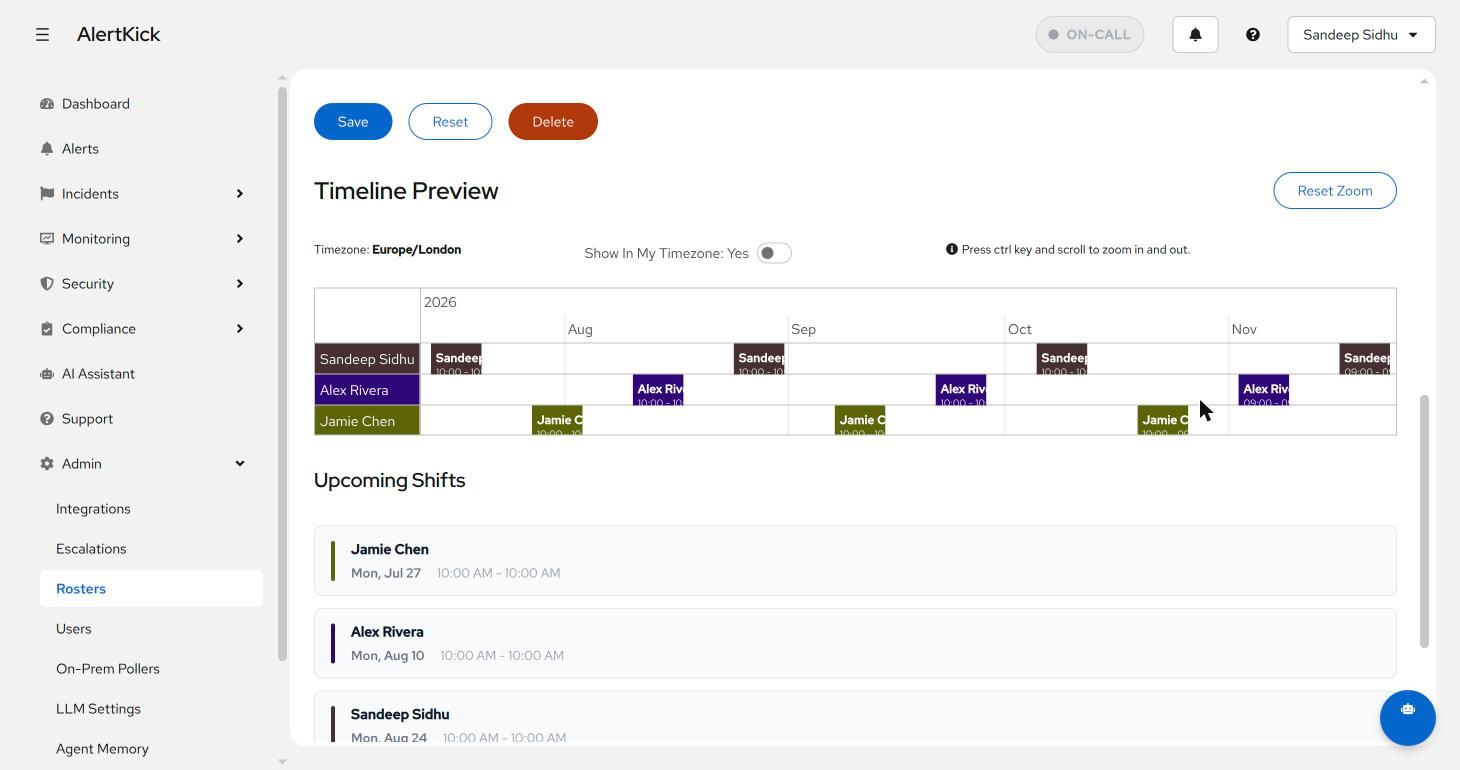
Check this before you save. If the blocks don’t alternate the way you expected, the member order (not the rotation settings) is usually the thing to fix.
Rotation patterns
Weekly, Monday morning handover - the default. Most teams want a clean weekly boundary so on-call duties don’t blur into evenings or weekends.
rotation_type:      weekly
rotation_day:       Monday
rotation_time_2400: 09:00
Daily - for short shifts (follow-the-sun across regions, or “primary + secondary” with a daily flip). Pair two daily rosters with different start times for a 12-hour shift pattern.
Custom - for irregular patterns (e.g. weekday-only, with weekends covered by a different group). Custom rosters take an explicit schedule rather than auto-generating one.
Previewing before you commit
Save changes wrong and the team finds out at 3am. The roster API exposes two preview endpoints that simulate the schedule for the next N weeks without saving:
POST /api/v1/rosters/{uuid}/schedule-preview- preview in the roster’s configured timezonePOST /api/v1/rosters/{uuid}/schedule-preview-tz- preview converted to a caller-supplied timezone
The UI uses these to render the calendar in the editor. The “Save” button isn’t enabled until you’ve actually seen the preview render. Use the same endpoints if you’re scripting changes.
Timezones and handovers
Rosters store an IANA timezone, and every handover is computed against that
zone. If your team is in London but the roster is set to
America/Los_Angeles, the 09:00 handover will fire at 17:00 GMT (or 16:00 in
summer). This is intentional - you usually want the handover to happen at the
start of the engineer’s workday, not the start of the dashboard owner’s.
For follow-the-sun setups, run one roster per region with non-overlapping shifts, and use escalation policy levels to fall through:
| Region | Hours covered (UTC) | Roster |
|---|---|---|
| APAC | 22:00-06:00 | apac-oncall |
| EMEA | 06:00-14:00 | emea-oncall |
| AMER | 14:00-22:00 | amer-oncall |
The escalation policy points at all three - only the active one will have a member when the policy is evaluated.
Editing during a shift
Edits take effect at the next handover, not immediately. If somebody is sick mid-shift you have two options:
- Skip-current - remove the affected member; the rotation advances to the next person as of the next handover. The current shift continues with the old person.
- Force handover - bump the rotation pointer by one. Useful if the current on-call is unreachable right now.
For routine swaps (e.g. one engineer covering for another for a single week), reorder the members rather than removing anyone. The rotation pointer will land on whoever you put in the active slot.
Tips
- Keep rosters small - 3 to 6 people is the sweet spot. With 10+ people the rotation is so infrequent that nobody remembers the runbook when their week comes around.
- Don’t reuse rosters across very different services - if “infra” and “billing” share a roster, you’ll page the wrong specialist half the time.
- Set a colour per member - the calendar view uses these to make at-a- glance scanning quick.
Next steps
- Wire the roster into one or more escalation policies.
- Read consolidated view for how the current on-call surfaces on the dashboard.
Try it on your own infrastructure
Everything in this guide works on the free plan or the 30-day money-back paid tiers - uptime monitors, heartbeats, escalations and on-call, plus the agent for metrics and eBPF security. Setup takes minutes, not sprints.